How To Plug Headphones Into Audio Interface?
When it comes to setting up a home studio or simply improving your audio experience, knowing how to properly plug headphones into an audio interface is crucial. This process might seem straightforward, but there are several factors to consider to ensure optimal sound quality and functionality. In this article, we will delve into the step-by-step process of connecting headphones to an audio interface, discuss common issues and their solutions, and provide tips for achieving the best audio performance.
Understanding the Basics
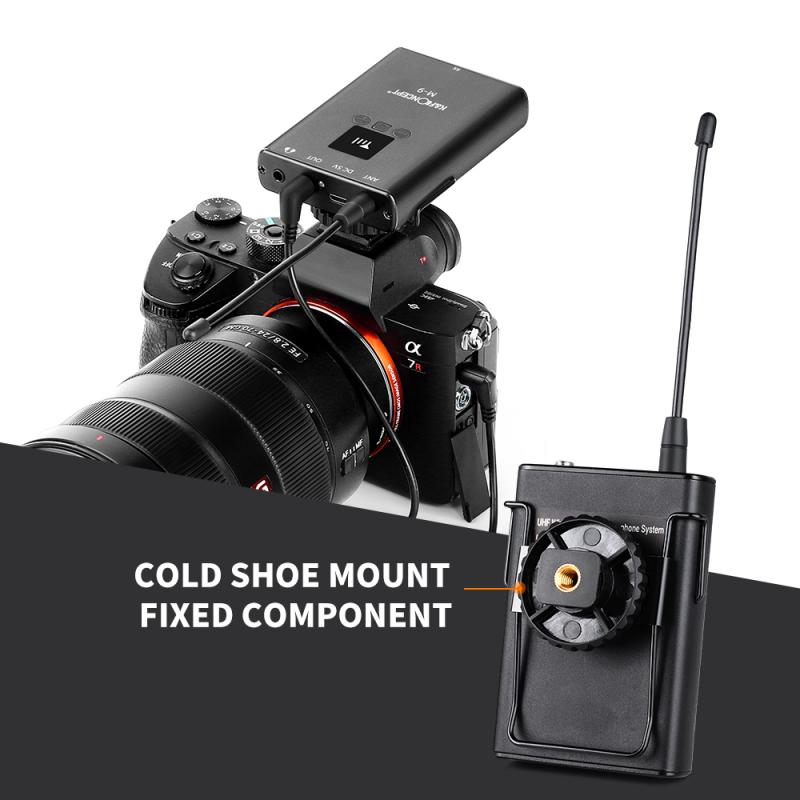
Before we dive into the specifics, it’s important to understand what an audio interface is and why it’s used. An audio interface is a device that converts analog signals (like those from a microphone or instrument) into digital signals that your computer can process. It also does the reverse, converting digital signals from your computer into analog signals that can be played through speakers or headphones.
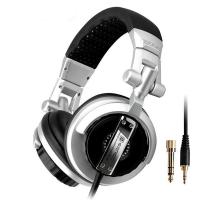
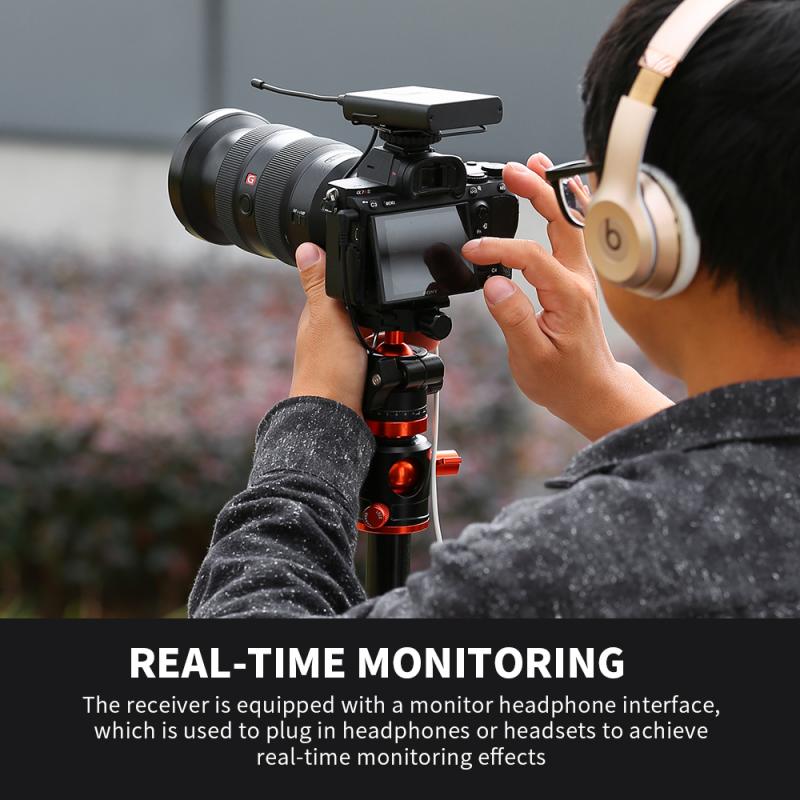
Headphones are typically used with an audio interface for monitoring purposes. This means you can listen to the audio in real-time as you record or mix, ensuring that everything sounds as it should.
Step-by-Step Guide to Plugging Headphones into an Audio Interface
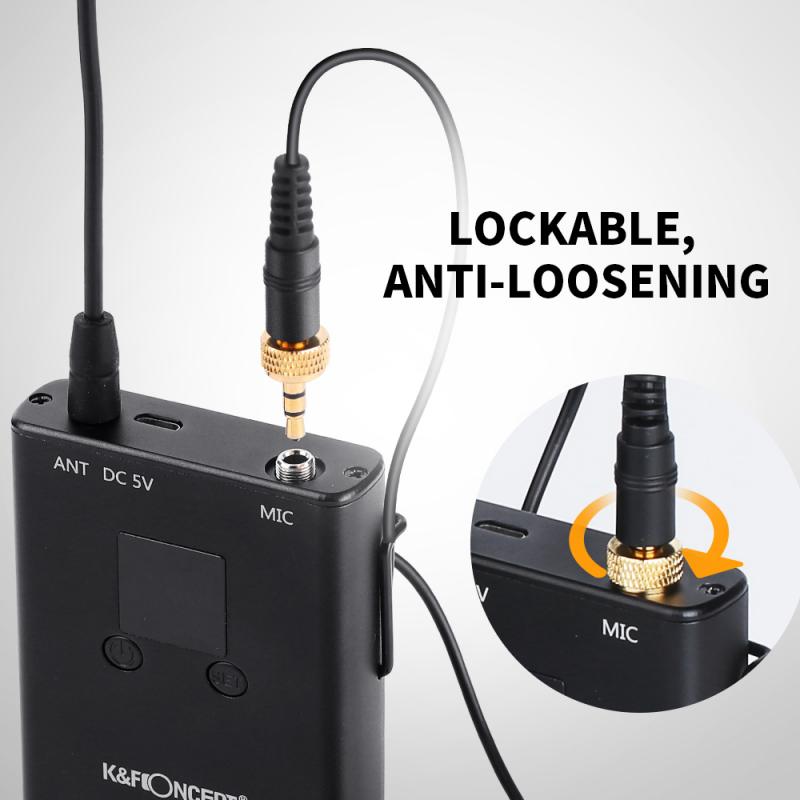
1. Check the Headphone Jack Size: Most professional audio interfaces come with a 1/4-inch (6.35mm) headphone jack. However, many consumer headphones use a 1/8-inch (3.5mm) plug. If your headphones have a 1/8-inch plug, you will need a 1/8-inch to 1/4-inch adapter.
2. Locate the Headphone Output: On your audio interface, find the headphone output. This is usually labeled as "Phones" or "Headphones" and is typically located on the front panel for easy access.
3. Plug in the Headphones: Insert the headphone plug (or the adapter, if needed) into the headphone output jack on the audio interface. Ensure it is fully inserted to avoid any connection issues.
4. Adjust the Volume: Most audio interfaces have a dedicated headphone volume knob. Start with the volume turned down to avoid any sudden loud noises that could damage your hearing. Gradually increase the volume to a comfortable listening level.
5. Configure Your Audio Settings: On your computer, ensure that the audio interface is selected as the default playback device. This can usually be done in the sound settings of your operating system or within your digital audio workstation (DAW) software.
Common Issues and Solutions
Even with the correct setup, you might encounter some issues. Here are a few common problems and their solutions:
- No Sound in Headphones: If you’re not hearing any sound, first check that the headphones are properly plugged in and that the volume is turned up. Next, ensure that the audio interface is selected as the output device in your computer’s sound settings. If the problem persists, try using a different pair of headphones to rule out a faulty pair.
- Distorted Sound: Distortion can occur if the headphone volume is set too high. Lower the volume and see if the distortion persists. If it does, check the audio levels within your DAW to ensure they are not peaking.
- Latency Issues: Latency is a delay between the input (what you play or sing) and the output (what you hear). To reduce latency, ensure that your audio interface drivers are up to date. You can also adjust the buffer size in your DAW settings; a smaller buffer size reduces latency but may increase the load on your computer’s CPU.
Tips for Optimal Audio Performance
1. Use High-Quality Headphones: Investing in a good pair of studio headphones can make a significant difference in audio quality. Look for headphones with a flat frequency response for accurate monitoring.
2. Keep Drivers Updated: Regularly check for updates to your audio interface drivers. Manufacturers often release updates that improve performance and compatibility.
3. Manage Cable Connections: Ensure that all cables are securely connected and free from damage. Loose or damaged cables can cause audio issues.
4. Monitor at Safe Levels: Prolonged exposure to high volume levels can damage your hearing. Always monitor at safe levels and take breaks to prevent ear fatigue.
5. Use a Dedicated Headphone Amp: If you require more power for your headphones, consider using a dedicated headphone amplifier. This can provide better sound quality and volume control.
Plugging headphones into an audio interface is a fundamental task for anyone involved in audio recording or production. By following the steps outlined in this article, you can ensure a proper connection and optimal audio performance. Remember to troubleshoot common issues and apply the tips provided to enhance your listening experience. With the right setup, you’ll be able to monitor your audio accurately and make informed decisions during the recording and mixing process.