How To Transfer Pictures From A Digital Camera?
Transferring pictures from a digital camera to a computer, smartphone, or other storage devices is an essential task for both amateur and professional photographers. Whether you are looking to share your photos online, free up space on your camera, or organize your memories for easy access later, there are various methods available to make the process efficient and secure. In this guide, we’ll walk you through several ways to transfer images from a digital camera, highlighting practical tips and common troubleshooting techniques along the way.
1. Using USB Cable Direct Connection

One of the most straightforward and widely used methods to transfer pictures from your digital camera is through a USB cable connection. Most digital cameras come with their own USB cable, typically Mini USB or Micro USB, designed for this purpose.
Steps:
1. Connect the Camera to the Computer:
Plug one end of the USB cable into your camera and the other end into the USB port on your computer. Ensure the camera is turned on.
2. Switch the Camera to Transfer Mode:
If your camera has multiple modes (e.g., shooting, playback), switch to the mode that enables data transfer. Some cameras automatically detect the connection and switch to transfer mode.
3. Access Camera Storage:
On your computer, open "File Explorer" (Windows) or "Finder" (Mac). The camera should appear as a removable device or external drive. Double-click its folder to view its contents.
4. Transfer Files:
Select the photos you wish to copy. Drag them to a destination folder on your computer or use the "Copy and Paste" function.
Benefits:
- Reliable and quick for bulk photo transfers.
- No need for internet connectivity.
- Works universally across major operating systems.
Caveats:

- Ensure both the computer and camera have sufficient battery power for uninterrupted transfers.
- Some older cameras may require drivers to be installed.
2. Transferring via Memory Card Reader
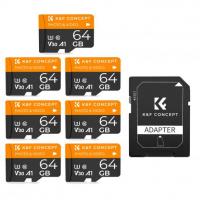
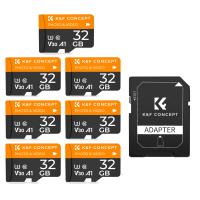
If your computer or laptop has a built-in memory card reader, or if you have an external card reader, transferring images directly from the camera’s memory card can be faster than using a USB cable.
Steps:
1. Remove the Memory Card:
Turn off your camera, then carefully remove the memory card (usually an SD card).
2. Insert the Card into the Reader:
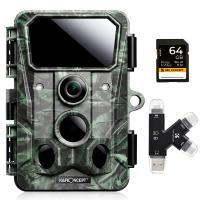
Insert the card into your computer’s card reader slot. For external card readers, connect the reader to the computer via USB.
3. Locate the Device on Your Computer:
Open "File Explorer" (Windows) or "Finder" (Mac), and find the memory card listed as an external drive.
4. Copy and Transfer Photos:
Navigate to the folder containing your images, select the ones you need, and copy them to your preferred storage location.
Benefits:
- Faster transfer speeds compared to direct USB connections.
- Allows for multi-device compatibility (e.g., you can transfer photos to different computers using the same card reader).
Caveats:
- Take care not to damage the card while inserting or removing it.
- Ensure the memory card is properly formatted before first use.
3. Transferring via Wireless Connectivity (Wi-Fi or Bluetooth)
Modern digital cameras often include wireless capabilities such as Wi-Fi or Bluetooth, enabling you to transfer photos without the need for cables or card readers.
Steps for Wi-Fi Transfer:
1. Enable Wi-Fi on Your Camera:
Navigate to your camera’s settings menu and turn on Wi-Fi functionality.
2. Connect to Your Device:
Pair the camera with your computer or smartphone by connecting both devices to the same Wi-Fi network. Refer to your camera manual for specific connection instructions.
3. Use Companion Software:
Many camera brands provide apps or software (e.g., Canon's Camera Connect, Nikon's SnapBridge) to enhance wireless photo transfers. Install the app and follow the prompts to select and transfer images.
Steps for Bluetooth Transfer:
1. Enable Bluetooth on Both Devices:
Turn on Bluetooth connectivity and ensure both the camera and your device are discoverable.
2. Initiate Pairing:
On your camera, select the device you want to pair with. Approve the pairing request on your smartphone or computer.
3. Transfer Files:
Open the camera’s gallery on your device, select the images, and transfer them.
Benefits:
- Wireless transfers eliminate the clutter of cables.
- Ideal if your computer or smartphone lacks USB ports or card readers.
Caveats:
- Wi-Fi transfer speeds may be slower for large, high-resolution files.
- Both devices need compatible wireless features.
4. Using Dedicated Software
Some digital cameras come with their own photo management software designed to make the transfer and organization of photos seamless. Examples include Nikon ViewNX and Canon EOS Utility.
Steps:
1. Download and Install the Software:
Visit the camera manufacturer’s website to download the official software. Install it on your computer.
2. Connect Your Camera:
Use a USB cable or pair via wireless connectivity. Launch the software on your computer.
3. Browse and Transfer Photos:
Use the program’s interface to select photos for transfer, tagging, or editing.
Benefits:
- Useful for batch processing and organizing large numbers of images.
- Some programs include additional features, such as editing or post-processing.
Caveats:
- Requires time to install and set up.
- May not be compatible with non-branded cameras.
5. Transferring to Smartphones or Tablets
If you prefer transferring pictures to a smartphone or a tablet for quick sharing, there are a couple of methods to consider:
Using an OTG Cable:
1. Purchase an OTG (On-The-Go) adapter for your smartphone.
2. Connect your camera to the smartphone using the OTG cable.
3. Use your phone’s file manager to copy images from the camera’s storage.
Using a Wi-Fi Transfer App:
Many cameras allow direct wireless transfers to mobile devices. Install the camera’s companion app, connect both devices via Wi-Fi, and follow the on-screen instructions.
Benefits:
- Convenient for on-the-go sharing.
- Compatible with most modern smartphones and tablets.
Caveats:
- Not all smartphones support OTG functionality.
- May require additional apps or settings adjustments.
Best Practices for Picture Transfers
Organize Files: Create folders categorically for easier access and backup later.
Backup Regularly: Once photos are transferred, back them up to external hard drives or cloud storage services (e.g., Google Drive, Dropbox).
Check File Formats: Ensure the computer or device can recognize the image file formats (e.g., JPEG, RAW).
Troubleshooting Common Transfer Issues
1. Devices Not Detecting Each Other:
- Check cable connections and ensure the camera is turned on.
- Check for driver updates for USB connections.
2. Slow Transfer Speeds:
- Use a USB 3.0 connection or a high-speed card reader.
- Minimize transferring large batches at once.
3. Wireless Connection Problems:
- Check compatibility and update your camera’s firmware.
- Ensure both devices are on the same network.
Transferring pictures from a digital camera is simplified by the range of available methods, whether through USB cables, memory card readers, wireless connections, or dedicated software. Your choice of method should depend on factors like transfer speed, device compatibility, and convenience. Following the outlined steps and adhering to best practices ensures you can archive your photos efficiently without data loss. By mastering these techniques, you’ll spend less time on technicalities and more time capturing the moments that matter most.