How To View Sd Card On Mac?
Viewing an SD card on a Mac is a common task that many users need to perform for various reasons, such as transferring photos, videos, or other files. Whether you are a photographer, a student, or just someone who needs to access data stored on an SD card, knowing how to do this efficiently can save you time and frustration. In this article, we will cover the steps to view an SD card on a Mac, troubleshoot common issues, and provide tips for managing your SD card data effectively.
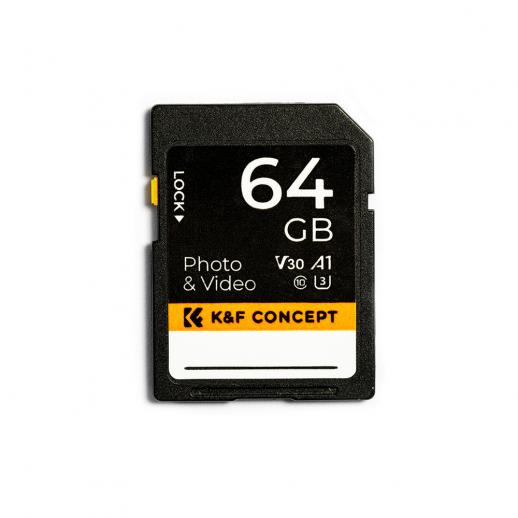
Step-by-Step Guide to Viewing an SD Card on a Mac
1. Insert the SD Card
The first step is to insert the SD card into your Mac. Most modern Macs come with an SD card slot, usually located on the side of the laptop or the back of the iMac. If your Mac does not have an SD card slot, you will need an external SD card reader that connects via USB or USB-C.
2. Open Finder
Once the SD card is inserted, open Finder. Finder is the default file manager on macOS and can be accessed by clicking the Finder icon in the Dock or by pressing Command + Space and typing "Finder."
3. Locate the SD Card
In Finder, look for the SD card under the "Devices" section in the sidebar. It will usually be named something like "NO NAME" or "UNTITLED" unless you have previously renamed it. Click on the SD card to view its contents.
4. Access Your Files
After clicking on the SD card, you will see all the files and folders stored on it. You can now open, copy, move, or delete files as needed. To copy files from the SD card to your Mac, simply drag and drop them to your desired location.
Troubleshooting Common Issues
SD Card Not Showing Up
If your SD card does not appear in Finder, there are several potential reasons and solutions:
- Check the Connection: Ensure that the SD card is properly inserted into the slot or the external reader is correctly connected to your Mac.
- Restart Finder: Sometimes, restarting Finder can resolve the issue. To do this, press Command + Option + Escape, select Finder, and click "Relaunch."
- Check Disk Utility: Open Disk Utility (found in Applications > Utilities) to see if the SD card is recognized there. If it appears in Disk Utility but not in Finder, try mounting the SD card by selecting it and clicking the "Mount" button.
- Update macOS: Ensure that your macOS is up to date, as updates can fix bugs and improve compatibility with external devices.
- Try Another SD Card: Test with a different SD card to determine if the issue is with the card or the Mac.
SD Card Read-Only
If you find that you cannot write to the SD card, it may be set to read-only mode. Here are some steps to resolve this:
- Check the Lock Switch: Many SD cards have a physical lock switch on the side. Ensure that this switch is in the "unlocked" position.
- Change Permissions: Right-click on the SD card in Finder, select "Get Info," and check the permissions at the bottom of the window. Ensure that you have read and write access.
- Format the SD Card: If the SD card is still read-only, you may need to format it. Be aware that formatting will erase all data on the card. To format, open Disk Utility, select the SD card, and click "Erase." Choose the appropriate format (usually ExFAT or FAT32 for compatibility with both Mac and Windows) and click "Erase."
Tips for Managing SD Card Data
Regular Backups
Always back up important data from your SD card to your Mac or an external hard drive. This ensures that you do not lose valuable files in case the SD card becomes corrupted or damaged.
Eject Properly
Always eject the SD card properly before removing it from your Mac. To do this, right-click on the SD card in Finder and select "Eject," or drag the SD card icon to the Trash. This helps prevent data corruption.
Use Reliable SD Cards
Invest in high-quality SD cards from reputable brands. Cheaper, low-quality cards are more prone to failure and data corruption.
Keep SD Cards Clean
Keep your SD cards clean and free from dust and debris. Store them in protective cases when not in use to prevent physical damage.
Advanced Tips for Power Users
Using Terminal
For advanced users, the Terminal application can provide more control over your SD card. You can use Terminal to list connected drives, mount or unmount the SD card, and even repair disk errors.
- List Drives: Open Terminal and type `diskutil list` to see a list of all connected drives, including your SD card.
- Mount/Unmount: To mount or unmount the SD card, use the commands `diskutil mount /dev/diskX` and `diskutil unmount /dev/diskX`, replacing `diskX` with the appropriate disk identifier from the list.
- Repair Disk: If you encounter errors, you can attempt to repair the SD card by typing `diskutil repairDisk /dev/diskX`.
Using Third-Party Software
There are several third-party applications available that offer additional features for managing SD cards on a Mac. Some popular options include:
- Disk Drill: A data recovery tool that can help recover lost or deleted files from your SD card.
- Paragon Software: Offers tools for managing and formatting SD cards, including support for various file systems.
- Clean My Drive: A utility that helps clean and manage external drives, including SD cards.
Viewing and managing an SD card on a Mac is a straightforward process, but it can sometimes present challenges. By following the steps outlined in this article, you can easily access your SD card data, troubleshoot common issues, and ensure that your files are safe and well-organized. Whether you are a casual user or a power user, these tips and tricks will help you make the most of your SD card and your Mac.
![4K digital camera for photography and video [autofocus and stabilisation] 48 MP video blog camera with SD card, 3](https://img.kentfaith.com/cache/catalog/products/us/GW41.0065/GW41.0065-1-200x200.jpg "4K digital camera for photography and video [autofocus and stabilisation] 48 MP video blog camera with SD card, 3")