How To Watch Surveillance Camera On Android?
In today’s fast-paced digital age, surveillance cameras are becoming increasingly prevalent, whether for security purposes at home, monitoring workplaces, or keeping track of property remotely. With Android smartphones and tablets now more powerful than ever, users can conveniently access their surveillance camera feeds anytime and anywhere. This article provides a comprehensive guide for anyone wondering how to watch surveillance camera footage on Android devices.
Step 1: Choose the Right Surveillance System
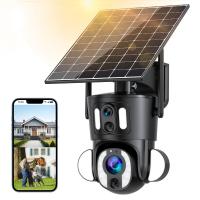
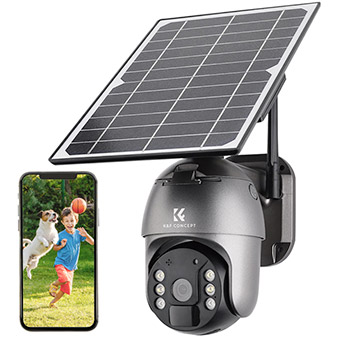
The first step in accessing surveillance camera feeds on your Android device is to verify that your CCTV system supports remote viewing. Modern surveillance systems typically come with mobile viewing capabilities, often accessible via dedicated apps or browser interfaces specifically designed for smartphones. Look for cameras labeled as “IP cameras,” “smart cameras,” or those that support apps for Android devices. If your system is older or lacks mobile compatibility, you might need to upgrade or purchase additional equipment to enable remote viewing.
Step 2: Check Internet Connectivity
To watch surveillance footage remotely, ensure both your surveillance system and your Android device are connected to the internet. Most newer surveillance cameras are networked devices that require either a Wi-Fi or wired internet connection. A stable and reliable internet connection ensures uninterrupted access to the camera feeds, whether live or recorded.
Make sure you configure your router correctly for remote access. For IP-based cameras, you might need to set up port forwarding or use a Dynamic DNS (DDNS) service to make your camera accessible from outside your home network. Alternatively, many surveillance system providers offer cloud-based viewing, eliminating the need for complex connectivity setups.
Step 3: Install the Recommended Mobile App
Modern surveillance systems often come with proprietary mobile apps designed specifically for Android users. Check the make and model of your surveillance camera and search for the associated app on the Google Play Store. Common apps include:
Reolink
Dahua
Lorex
Nest
YI Home
Google Home
These apps are optimized for Android devices and offer an intuitive way to access live feeds, playback recorded footage, and configure camera settings remotely. Follow these steps to install the app:
1. Open the Google Play Store on your Android device.
2. Search for the app recommended by your surveillance camera manufacturer.
3. Download and install the app.
4. Log in or create an account within the app, if necessary.
If your camera doesn’t have a dedicated mobile app, third-party apps such as TinyCam Monitor, IP Webcam, or Onvifer can be used—but ensure compatibility with your camera before downloading.
Step 4: Connect the Camera to the App
Once the app is installed, you’ll need to connect your surveillance camera to it. This may involve scanning the QR code provided with your camera or manually adding the device by entering its IP address or unique identifier. Follow the instructions outlined by the app to complete the pairing process.
Here are the common steps for connecting the app to your surveillance system:
1. Open the app and register an account, if required.
2. Search for an option such as “Add Camera” or “Set Up Device.”
3. Scan the QR code provided by your surveillance camera or enter the system’s unique details (username, password, or IP address).
4. Once connected, you should see the camera feed displayed on your Android device.
Tip: For seamless remote viewing without exposure to hacking, always ensure you change the default username and password for your surveillance camera system.
Step 5: Explore the App’s Features
Once connected, familiarize yourself with the features of the app. Most apps enable you to view live surveillance footage, playback recorded video, configure motion detection settings, and even communicate through audio-enabled cameras. Some apps feature advanced functions like push notifications for motion alerts and cloud storage for footage. Explore options like zooming the camera feed or using split-screen views to monitor multiple cameras simultaneously.
An essential tip for users is to configure notifications for motion alerts. Android apps typically allow you to receive instant push alerts when the camera detects movement. This feature is beneficial if you want proactive security monitoring without watching the feed 24/7.
Step 6: Remote Access via Cloud Services or DDNS
Sometimes, you may want to access your surveillance camera feed while on the go without using the proprietary app. Many surveillance systems support remote viewing via cloud services or DDNS setups. Cloud-based systems store video recordings remotely, allowing you to check footage from any device and location. Popular cloud storage platforms for surveillance camera systems include:
- Google Drive
- Dropbox
- AWS
- Proprietary cloud storage provided by the camera manufacturer
Alternatively, DDNS allows you to access your camera by mapping an easy-to-remember domain name to your IP address. Most IP cameras include DDNS service integration directly from the settings menu.
Step 7: Troubleshooting Common Issues
Remote viewing through an Android device is typically seamless, but if you encounter issues, here are some common solutions:
1. Camera Not Connecting to Wi-Fi: Ensure the Wi-Fi signal is strong, and verify the camera is set to the correct SSID.
2. App Failure: Make sure the app is updated via the Google Play Store. Sometimes, outdated versions create compatibility issues.
3. Password Errors: Ensure you input the correct login information for your camera and app. Reset the credentials if necessary.
4. Port Forwarding Issues: Verify your router’s port-forwarding settings. If you’re unsure how to proceed, consult your camera’s manual.
5. Motion Alerts Not Functioning: Settings for motion detection alerts are often found within the app. Make sure these notifications are enabled.
Step 8: Security Tips
Remote access to surveillance footage brings immense convenience but also potential risks. Here are some essential security practices to protect your camera system:
Enable Two-Factor Authentication: Many surveillance apps support two-step verification; enable it to safeguard your account.
Change Default Passwords: Cybersecurity threats increase when systems use factory-set credentials.
Regularly Update Firmware: Surveillance cameras, like any connected device, rely on firmware updates to patch vulnerabilities.
Use Encrypted Connections: Cameras supporting SSL (Secure Sockets Layer) encryption ensure data integrity during transmission.
Limit Access: Trust only authorized users with access to feeds.
Disable Unnecessary Features: Disable sharing options or features that open your camera to third-party access unless absolutely needed.
Advantages of Viewing Surveillance Cameras on Android
Using your Android device brings several advantages for surveillance monitoring:
1. Portability: Monitoring your property can be done remotely from anywhere, whether at work or traveling abroad.
2. Ease of Use: Surveillance apps are user-friendly and require minimal technical expertise.
3. Real-Time Alerts: Receive instant notifications in case of suspicious activity.
4. Integration with Smart Home Ecosystems: Many surveillance systems integrate with smart home hubs, allowing better control and automation.
Watching surveillance cameras on Android devices is simpler than ever, thanks to advancements in mobile app technology and smart camera systems. By following the steps outlined in this guide, you can effortlessly keep an eye on your property, ensuring its security anytime and anywhere. Whether setting up the proprietary app, navigating through features, troubleshooting issues, or implementing security best practices, the integration of surveillance monitoring with Android devices provides users with peace of mind and excellent flexibility.
Always choose reliable camera systems, maintain a secure setup, and stay updated with technology to maximize your monitoring efficiency. With your Android device, the power to watch over your home or business is literally in the palm of your hand.