How Do I Format A Memory Card?
Formatting a memory card is a common task that many people need to perform, whether to clear space, fix errors, or prepare the card for use in a new device. This article will guide you through the process of formatting a memory card, covering various devices and operating systems. By the end of this article, you will have a comprehensive understanding of how to format a memory card safely and effectively.
Understanding Memory Card Formatting

Before diving into the steps, it's essential to understand what formatting a memory card means. Formatting is the process of preparing a storage device, such as a memory card, for use by an operating system. This process involves erasing all existing data and setting up a new file system. Common file systems for memory cards include FAT32, exFAT, and NTFS.
Why Format a Memory Card?

There are several reasons why you might need to format a memory card:
1. Clearing Space: Formatting erases all data, providing a clean slate.
2. Fixing Errors: If the card is corrupted or has errors, formatting can often resolve these issues.
3. Changing File System: Different devices may require different file systems.
4. Preparing for New Device: When using a memory card in a new device, formatting ensures compatibility.
Precautions Before Formatting
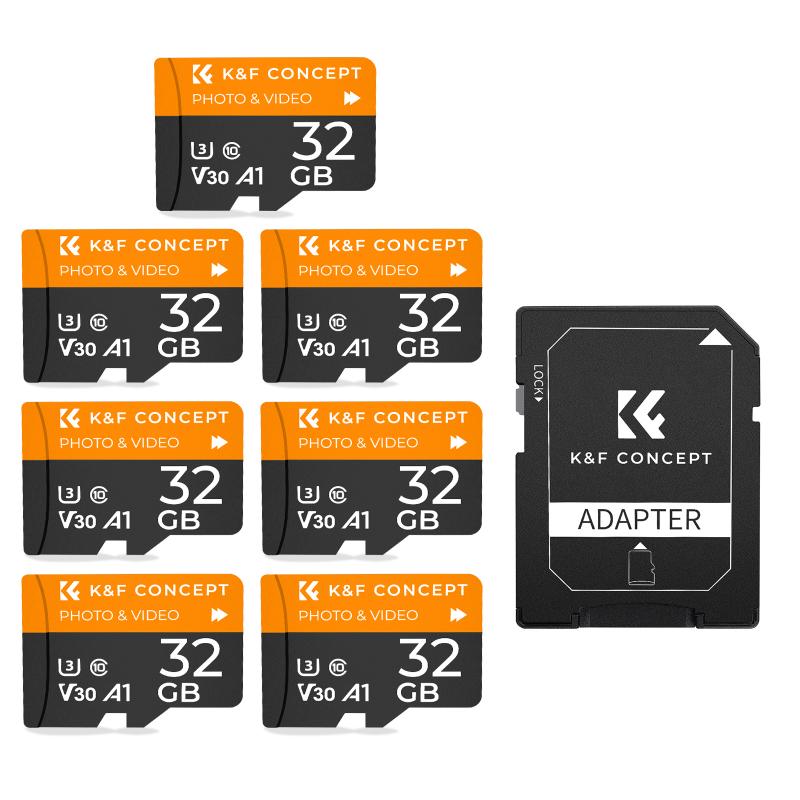
1. Backup Data: Formatting will erase all data on the memory card. Ensure you back up any important files before proceeding.
2. Check Compatibility: Ensure the file system you choose is compatible with the device you plan to use the card in.
3. Use Reliable Tools: Use trusted software or built-in tools to avoid damaging the card.
Formatting a Memory Card on Different Devices

1. Formatting on Windows
Step-by-Step Guide:
1. Insert the Memory Card: Use a card reader or the built-in slot on your computer.
2. Open File Explorer: Press `Win + E` to open File Explorer.
3. Locate the Memory Card: Find the card under "This PC" or "My Computer."
4. Right-Click and Select Format: Right-click on the memory card and choose "Format."
5. Choose File System: Select the desired file system (FAT32, exFAT, NTFS).
6. Quick Format: Check the "Quick Format" option for a faster process.
7. Start Formatting: Click "Start" to begin the formatting process.
2. Formatting on macOS
Step-by-Step Guide:
1. Insert the Memory Card: Use a card reader or the built-in slot on your Mac.
2. Open Disk Utility: Go to `Applications > Utilities > Disk Utility`.
3. Select the Memory Card: Find the card in the list of drives.
4. Erase: Click the "Erase" button at the top.
5. Choose Format: Select the desired format (MS-DOS (FAT) for FAT32, ExFAT for exFAT).
6. Name the Card: Give the card a name if desired.
7. Erase: Click "Erase" to start the formatting process.
3. Formatting on Android Devices
Step-by-Step Guide:
1. Insert the Memory Card: Insert the card into the device's slot.
2. Open Settings: Go to the device's settings menu.
3. Storage: Find and select the "Storage" option.
4. Select the Memory Card: Tap on the memory card.
5. Format: Choose the "Format" or "Format as Portable" option.
6. Confirm: Confirm the action to start formatting.
4. Formatting on Cameras
Step-by-Step Guide:
1. Insert the Memory Card: Insert the card into the camera.
2. Open Menu: Access the camera's menu.
3. Find Format Option: Navigate to the settings or tools section to find the format option.
4. Select Format: Choose the format option and confirm.
5. Wait for Completion: Allow the camera to complete the formatting process.
Troubleshooting Common Issues
1. Card Not Recognized: Ensure the card is properly inserted and compatible with the device.
2. Error Messages: Try using a different device or formatting tool.
3. Slow Performance: Use the "Full Format" option instead of "Quick Format" for a more thorough process.
Best Practices for Memory Card Maintenance
1. Regular Backups: Regularly back up important data to avoid loss.
2. Safe Removal: Always safely eject the card from devices to prevent corruption.
3. Avoid Physical Damage: Handle the card carefully to avoid physical damage.
4. Use Quality Cards: Invest in high-quality memory cards from reputable brands.
Formatting a memory card is a straightforward process that can be done on various devices and operating systems. Whether you're using Windows, macOS, Android, or a camera, the steps are simple and easy to follow. Always remember to back up your data before formatting and choose the appropriate file system for your needs. By following the guidelines and best practices outlined in this article, you can ensure that your memory card is formatted correctly and ready for use.
In summary, understanding the reasons for formatting, taking necessary precautions, and following the correct steps will help you manage your memory cards effectively. Whether you're clearing space, fixing errors, or preparing the card for a new device, this guide provides all the information you need to format your memory card safely and efficiently.