How To Display Wireless Cctv Camera On Tv?
Wireless CCTV cameras have grown in popularity due to their ease of setup, innovative features, and the flexibility they provide to home and business security systems. One frequent question among users is how to display footage from a wireless CCTV camera on a TV. Unlike standard wired systems, connecting a wireless camera to a TV can be a bit more complex, depending on the technology in use. In this article, we’ll walk you through a step-by-step process to achieve this, outline the equipment required, and explore practical solutions for a seamless viewing experience.
Understanding the Basics of Wireless CCTV Cameras
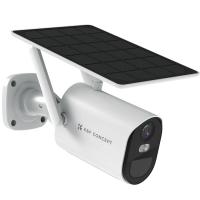
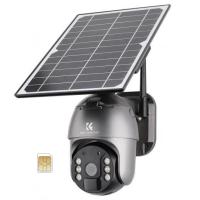
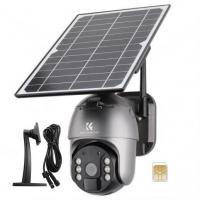
Wireless CCTV cameras transmit video signals through Wi-Fi as opposed to physical cables. These cameras often come with companion apps that allow live viewing on smartphones, tablets, or PCs. Despite their wireless capabilities, connecting these cameras to devices other than smartphones or computers, such as a TV, may involve intermediary steps or additional equipment to bridge the connection.
Equipment You May Need
To display your wireless CCTV camera’s feed on your TV, ensure you have the following:
1. Wireless CCTV Camera – An operational camera capable of streaming feeds, either via Wi-Fi or a proprietary protocol.
2. Smart TV or an HDMI-enabled TV – Modern TVs with HDMI inputs or built-in apps like YouTube, VLC, or other media platforms.
3. Streaming Media Device (if required) – Devices such as Amazon Fire Stick, Roku, Google Chromecast, or Apple TV that can help display camera feeds via apps.
4. Compatible App – A platform or app used to stream wireless CCTV camera footage.
5. HDMI or RCA Cables with Adapters – Optional for wired bridging, depending on your situation.
6. Network Video Recorder (NVR) – If your camera system includes an NVR, it can make the process simpler.
Now that you’re acquainted with the tools, let’s dive into how to achieve this connection.
Step 1: Identify Your TV’s Capabilities

The first step in displaying your wireless CCTV camera feed on a TV is to understand your TV’s current technology.
For Smart TVs: Most modern Smart TVs have built-in apps or screen mirroring capabilities. This can simplify the process of connecting your CCTV camera because many security camera apps (or third-party apps such as TinyCam Monitor) have support for direct video streaming.
For Non-Smart TVs: If you’re using an older model, ensure it has HDMI or RCA inputs. You may need additional devices, such as an NVR or streaming media device, to mediate the connection.
Step 2: Access the Camera Feed on Your TV
Option 1: Using a Smart TV App
If your wireless CCTV camera has a dedicated app and your TV supports it:
1. Download the camera’s app on your Smart TV through the app store.
2. Log in to your account.
3. Select the specific camera feed you want to display. The feed should display in real-time.
Supported apps usually streamline this process by offering a "Live View" option, which is especially helpful for monitoring.
Option 2: Screen Mirroring Using Other Devices
Screen mirroring is one of the easiest solutions for both Smart TVs and additional devices (like streaming sticks):
1. Ensure your TV is connected to the same Wi-Fi as your wireless camera and the mobile app on your phone or tablet.
2. Use screen mirroring through platforms like Google Chromecast, Apple AirPlay, or Roku.
3. Launch the CCTV camera app on your phone, tablet, or PC, and start streaming the live feed.
4. Mirror the device screen to the TV to view the footage.
For example, with Chromecast:
- Use the Google Home app to connect to your Chromecast device.
- Select the "Cast Screen/Audio" feature.
- Open the CCTV app on your phone, and the feed will display on your TV.
Option 3: Connecting Through an NVR
Network Video Recorders (NVRs) offer another effective way to show a wireless camera feed on a TV. Many wireless camera systems are compatible with NVRs, which aggregate multiple camera feeds and provide HDMI or VGA outputs for direct TV connections. Here’s how:
1. Link your wireless CCTV cameras to the NVR via Wi-Fi (refer to the camera system’s manual for details).
2. Use an HDMI or VGA cable to connect the NVR to your TV.
3. Switch your TV’s input source to HDMI or VGA, and the NVR’s interface will appear.
4. From the NVR’s menu, select and view the live feeds from your connected cameras.
Option 4: Third-Party Streaming Media Devices
Streaming devices like Amazon Fire Stick or Roku can offer an alternative:
1. Install your CCTV app or third-party viewing apps such as TinyCam or IPCam Viewer on the device.
2. Log into the app on the streaming media device.
3. Select the camera to display its feed. This straightforward method particularly applies to cameras that do not rely on proprietary or manufacturer-specific technologies.
Option 5: HDMI Output from a Computer
If your wireless camera is primarily viewed on a PC but you want to use it as a bridge to display the view on your TV:
1. Install the CCTV camera software on your PC or access your camera feed through a compatible browser.
2. Connect the computer to your TV via an HDMI cable.
3. On your TV, change the input to match the HDMI source. The computer’s screen, displaying the camera feed, will mirror onto the TV.
Practical Tips for a Seamless Viewing Experience
1. Check Wi-Fi Signal Strength: Wireless cameras depend on a strong Wi-Fi connection for smooth streaming. Weak signals could cause delays or stuttering on your TV feed.
2. Optimize Resolution Settings: Adjust the image resolution in your camera settings to match your TV’s capabilities. HD TVs (720p or 1080p) might require scaling down higher-resolution streams to display properly.
3. Secure Connections: For remote viewing, configure strong passwords and enable two-factor authentication, if available, to prevent unauthorized access to your camera system.
4. Update Firmware: Outdated software in your camera, smart TV, or NVR could lead to compatibility issues. Ensure all components of the system are running the latest versions for optimal performance.
5. Test Before Full Reliance: Test your setup for stability over a few days before relying on it for full-time monitoring.
Troubleshooting Common Problems
1. No Signal on TV: Verify that your wireless camera and TV are on the same Wi-Fi network. Also, check for proper connections and/or compatibility issues with cables, mirroring devices, or camera apps.
2. Camera Not Showing Feeds in Apps: Confirm that your wireless camera is configured properly for remote viewing and that the app supports viewing on larger screens.
3. Lagging or Freezing Frame Rates: Adjust the video resolution settings of the camera or reduce interference from other devices that share the same wireless frequency.
Displaying a wireless CCTV camera feed on your TV is not only practical but greatly enhances monitoring convenience, especially in homes or workplaces that utilize TV displays as a centralized hub. Whether leveraging a Smart TV, connecting via an NVR, using screen mirroring with streaming devices, or relying on direct HDMI connections, the right solution will depend on your specific equipment and preferences. With the methods outlined above, you can ensure your footage is readily accessible on a larger screen, improving security monitoring for any environment.