How To Setup Wifi Smart Camera Video?
Setting up a Wi-Fi smart camera for video monitoring can seem intimidating at first, but with the right steps and instructions, it can be a seamless and straightforward process. Whether you’re using it for home security, monitoring pets, or simply keeping an eye on your property, a Wi-Fi smart camera offers unmatched convenience and accessibility. In this article, we’ll break down the entire setup process into clear, actionable steps, answer common user concerns, and provide tips to troubleshoot common problems.
Step 1: Preparation Before Setup
Before diving into the technical process, it's essential to prepare both the space and devices you'll be working with.
1. Check the Wi-Fi Network
- Ensure you have a reliable Wi-Fi network with a strong connection in the area where you want to place the camera.
- Most Wi-Fi cameras operate on 2.4 GHz networks. Some newer models support dual-band (2.4 GHz and 5 GHz). Make sure your router supports the frequency compatible with your device.
2. Download the Associated App
- Almost all smart cameras require configuration through their dedicated mobile app. Search for the app in your device's app store (Google Play Store or Apple App Store). For instance, for brands like Ring, Wyze, or Arlo, download their proprietary apps.
3. Create an Account with the Camera’s Manufacturer
- Open the app and create an account. You'll likely need to provide an email address or phone number and set up a password. Once completed, verify your account through an email or text confirmation.
4. Power on the Camera
- Plug in the camera to a power outlet using the supplied adapter and cable. Wait for it to turn on. Most cameras will display an indicator light or sound to let you know they are powered and ready to pair.
Step 2: Placement of the Camera
Before connecting your smart camera to your Wi-Fi network, it's helpful to decide where you want your camera to go.
1. Choose the Right Location
- Ensure the area provides a clear view of the space you wish to monitor without obstructions like walls, furniture, or plants.
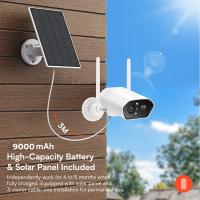
- If the camera is for outdoor monitoring, make sure it’s weather-resistant and mounted to offer optimal coverage, potentially with a bird’s-eye view.
2. Consider Power Outlet Accessibility
- Place the camera close enough to a power source if it's not battery-operated. Avoid relying on extension cords if possible to ensure safety.
3. Check Wi-Fi Signal Strength
- Use your smartphone to test Wi-Fi signal strength in the chosen location. Weak signals may affect the camera’s performance. If the signal is insufficient, consider relocating the router or using a Wi-Fi extender.
Step 3: Connecting Your Camera to Wi-Fi
At this point, your camera is powered on, and you’ve downloaded the app. Now it’s time to connect the device to your Internet.
1. Initiate the Pairing Process
- Open the app and follow its setup wizard to add a new device. Most cameras will require you to select the type of device you’re adding before proceeding.
- In some cases, you'll be asked to scan a QR code on the camera or in the manual.
2. Select Your Wi-Fi Network
- The app will prompt you to choose your home Wi-Fi network and enter the password. Make sure to select the correct network (and not a guest network unless explicitly needed).
3. Wait for Connection Confirmation
- The camera will attempt to connect to the selected Wi-Fi network. During this phase, a pairing indicator on the camera (usually a light or a tone) will confirm if the connection has been successfully established.
4. Link the Camera to the App
- After pairing is complete, the app will finalize the connection. You may need to customize the camera name (e.g., "Front Door" or "Living Room") at this stage.
- Test the live feed to ensure everything is working correctly.
Step 4: Configuring Camera Settings
Once the camera is running, configuring the right settings ensures you get optimal performance tailored to your needs.
1. Adjust Video Quality
- Most Wi-Fi cameras allow you to choose between resolutions such as 720p, 1080p, or higher. For areas with limited bandwidth or weak signal, lowering the video quality can prevent buffering.
2. Set Up Motion Detection
- Almost all smart cameras offer motion detection alerts. Use the app to set up detection zones to prevent unnecessary notifications from areas like roads or trees. Fine-tuning this reduces the chance of false alarms.
3. Customize Alerts
- Decide how you want to be notified, whether through app notifications, email alerts, or both. You can usually choose to disable alerts during certain hours for added convenience.
4. Enable Two-Way Audio
- If your camera has a microphone and speaker, enable the two-way communication feature to talk through your camera. You may need to test the volume levels and clarity of audio as part of this step.
5. Explore Cloud Storage and Subscriptions
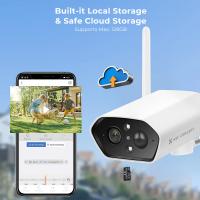
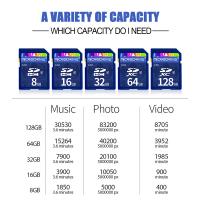
- Many Wi-Fi cameras offer cloud-based storage for recorded footage. Depending on the brand, you might need a subscription to access these services. Without it, you may need to use local recording options like an SD card (if supported).
Step 5: Mounting the Camera
If you're happy with your test results and settings, it's time to finalize the installation.
1. Attach the Camera
- Most cameras come with mounting kits that include screws and brackets. Secure the camera carefully, especially if it's placed at a height, to avoid accidental falls.
- If it's a magnetic mount, ensure the surface is compatible for stable placement.
2. Test the View and Connectivity
- Double-check the camera’s field of view in the app. Adjust angles to avoid blind spots while ensuring the crucial areas are covered.
- Retest the Wi-Fi signal strength in this placement. Consider reconfiguring your setup if there are connectivity interruptions.
Common Troubleshooting Tips
Even with the best preparation, you may encounter issues during or after setup. Here are some quick remedies:
1. The Camera Won’t Pair with Wi-Fi
- Double-check the Wi-Fi password and ensure the network operates on a compatible frequency (e.g., 2.4 GHz).
- Restart the camera or perform a factory reset if needed. Refer to the manual for reset instructions.
2. Live Feed is Lagging or Not Loading
- Check your Internet speed to ensure it meets your camera's requirements. Lower the video streaming quality if needed.
- Reduce the number of connected devices on your network for improved performance.
3. Motion Detection Is Too Sensitive
- Revisit the app to adjust detection zones or sensitivity levels. Try testing different configurations to narrow down unnecessary alerts.
4. Camera Disconnects Frequently
- Ensure the device is within range of the router. If not, invest in a Wi-Fi extender to enhance signal coverage.
Setting up a Wi-Fi smart camera for video is a simple process when approached methodically. By preparing adequately, following proper installation steps, and troubleshooting proactively, you can ensure that your camera works seamlessly within your desired environment. Remember, the ultimate goal is to match the camera's settings to your specific needs—whether it’s keeping an eye on your front door, monitoring kids, or enhancing your home’s overall security.
In addition, take time to familiarize yourself with advanced features offered by your camera model. Features like time-lapse recordings, smart home integrations (e.g., Alexa or Google Assistant), or AI-based motion detection can unlock even greater functionality and convenience.
By adhering to these guidelines, your Wi-Fi smart camera can serve as a reliable tool for monitoring, protecting, and connecting you to your space anytime, anywhere.