How To Take Video On Digital Camera?
Digital cameras are powerful tools that allow users to capture both stunning photographs and high-quality videos. While taking video on a digital camera might seem straightforward, understanding the process and optimizing your camera settings can dramatically improve the quality of your footage. This guide will walk you through everything you need to know about recording video with your digital camera, including preparation, setup, shooting techniques, and post-recording tips.
Understanding the Basics of Video Recording on a Digital Camera
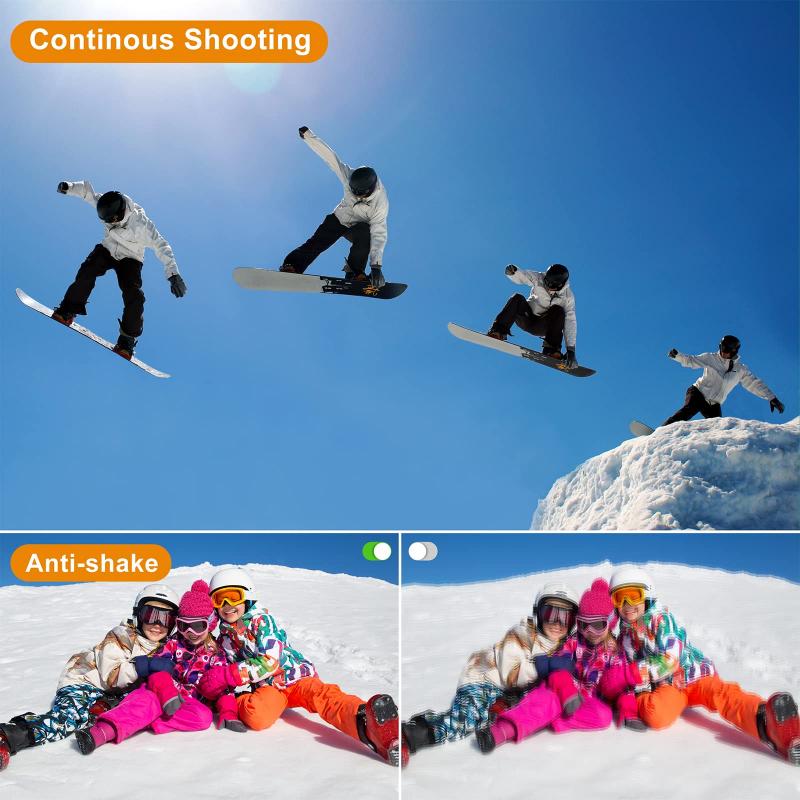
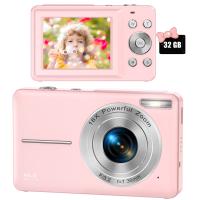
Modern digital cameras, whether compact point-and-shoot models, mirrorless cameras, or DSLRs, come equipped with video recording functionality. However, the quality and features available vary by model. Before you begin, familiarize yourself with your camera’s video capabilities by checking the user manual or product specifications. Pay attention to details such as resolution options, frame rates, and available manual settings for video.
Step-by-Step Guide to Recording Video on a Digital Camera
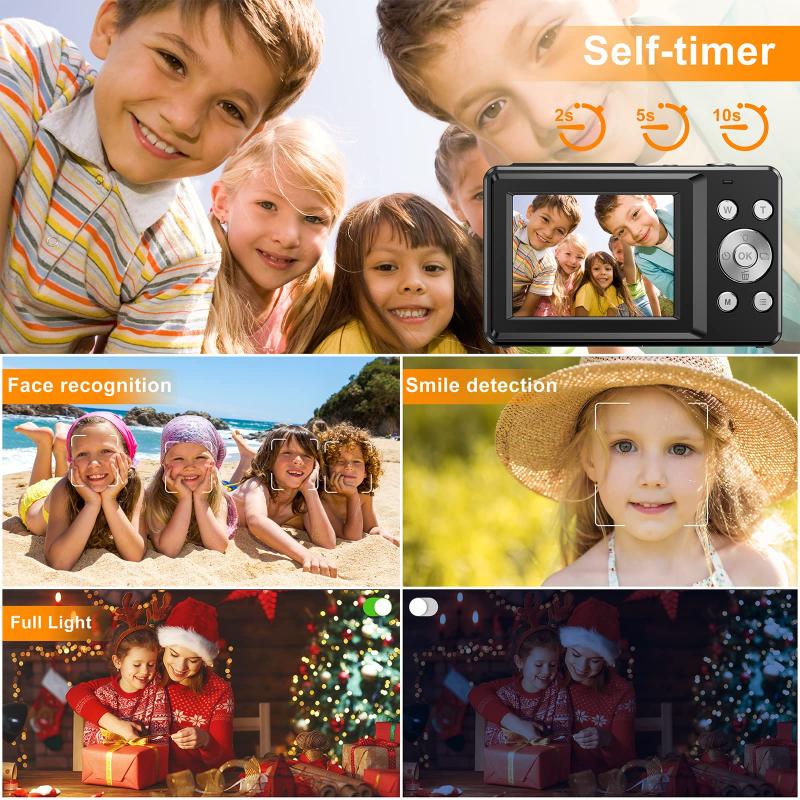
1. Check Your Camera Settings and Equipment
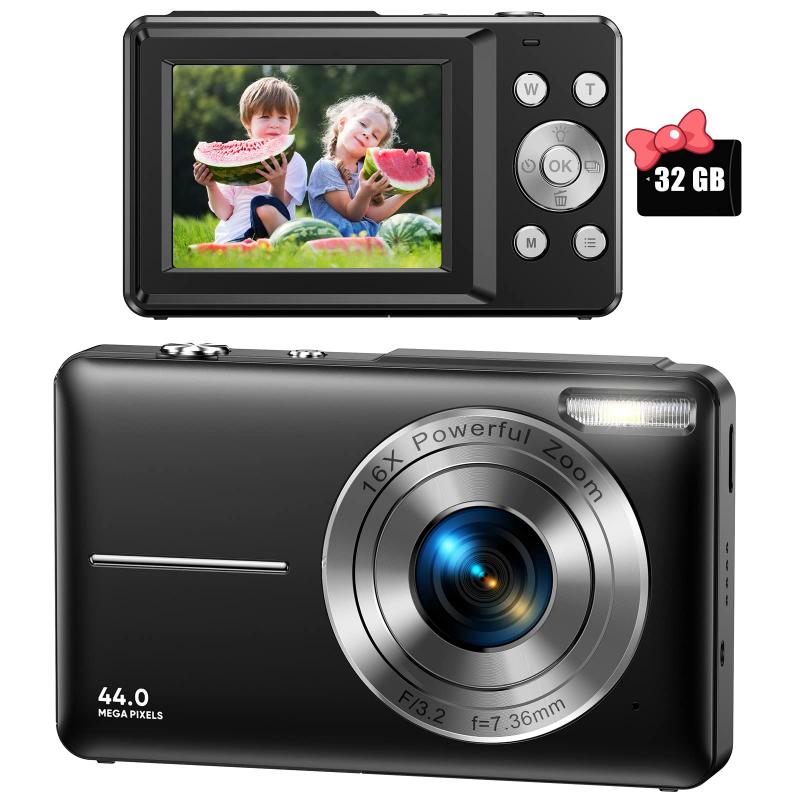
To ensure smooth recording, take the time to prepare your setup:
Battery Life: Video recording consumes more power than photography. Ensure your camera’s battery is fully charged or carry a spare.
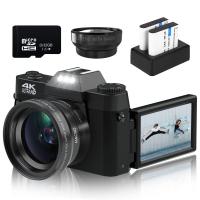
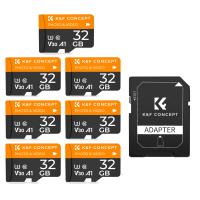
Memory Card: Use a high-speed SD card with ample storage capacity. Video files are larger than photos, so a card with good write speeds and sufficient space is essential.
Resolution and Frame Rate: Decide the quality of your video. Popular resolutions include 1080p (Full HD) and 4K, and frame rates often range from 24fps (cinematic) to 60fps (smooth motion). Choose based on the purpose of your recording.
Lenses (for interchangeable-lens cameras): Select a lens suitable for your shot. Some lenses are better for wide landscapes, while others excel in close-ups or portraits.
2. Switch to Video Mode

Every digital camera has a dedicated mode for recording video. Depending on your model:
- Look for a "Video" or "Movie" setting on the mode dial.
- Alternatively, there may be a dedicated video recording button, usually marked with a red circle.
Once in video mode:
- The LCD screen will display the video framing.
- Adjust settings such as resolution, frame rate, and file format.
3. Adjust Key Video Settings
For better control over your footage, manual adjustments can make a significant difference:
Focus Mode: Choose between autofocus (AF) and manual focus (MF). For dynamic shots, continuous AF can track subjects, while MF offers greater precision in static setups.
Exposure Settings: Control aperture, shutter speed, and ISO to achieve the desired brightness and depth of field. For smooth motion, use a shutter speed that’s approximately double your frame rate (e.g., 1/50 for 24fps or 1/125 for 60fps).
White Balance: Set the white balance to match the lighting conditions, whether it's daylight, tungsten, or a custom temperature.
Stabilization: If available, enable in-camera stabilization or use an external stabilizer, like a gimbal, for smoother footage.
4. Compose Your Shot
Frame your video with purpose. Use the rule of thirds, leading lines, and negative space to create visual interest. Pay attention to background details and ensure the subject is well-lit and in focus.
5. Start Recording
Press the video recording button to start filming. Monitor the camera’s LCD screen or viewfinder for composition and exposure. Some tips include:
- Avoid sudden movements that may result in shaky footage.
- Pan or zoom slowly for a professional look, unless fast action is intentional.
- Keep an eye on recording time to prevent overheating (common in some DSLR and mirrorless cameras).
6. End Recording and Review Your Footage
When you’re finished, press the recording button again to stop. Play back your video to check for framing, focus, and overall quality. This ensures that you captured what you intended before moving on to the next shot.
Advanced Tips to Enhance Video Quality
Use a Tripod or Stabilizer
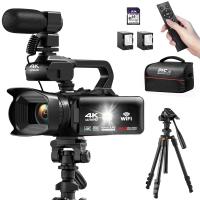
Handheld footage can often be shaky, especially over extended recording periods. A tripod or a 3-axis gimbal can provide stability, resulting in smoother video.
Invest in an External Microphone
Built-in camera microphones often pick up background noise and lack clarity. For better audio quality:
- Connect an external microphone to your camera's mic input.
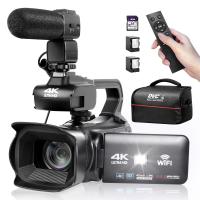
- Options include shotgun microphones for directional sound and lavalier microphones for interviews.
Leverage Manual Focus
Autofocus can sometimes “hunt” or shift focus during a recording. Switching to manual focus ensures your subject stays sharp, especially in controlled environments or low light.
Experiment with Frame Rates
Frame rate impacts the look of your video:
- 24fps provides a cinematic feel.
- 30fps is ideal for everyday video.
- 60fps or higher is perfect for sports or creating slow-motion effects in post-production.
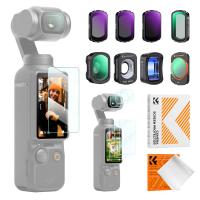
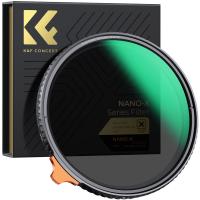
Use Neutral Density (ND) Filters
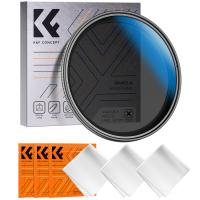
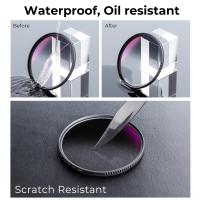
Shooting in bright conditions can lead to overexposed footage. ND filters limit light, allowing you to keep wider apertures for a shallow depth of field without sacrificing exposure.
Record in Flat Profiles
If your camera supports it, record in a flat or log color profile. These profiles preserve more detail in highlights and shadows, giving greater flexibility for color grading during editing.
Troubleshooting Common Problems
1. Blurry Footage:
- Ensure autofocus is functioning correctly, or switch to manual focus and fine-tune it.
- Stabilize your camera using a tripod or a gimbal.
2. Overexposed Scenes:
- Adjust the aperture, shutter speed, or ISO settings.
- Use ND filters to reduce light entering the lens.
3. Audio Issues:
- Reduce wind noise with a microphone windscreen or “deadcat.”
- Monitor audio levels while recording to ensure clarity.
4. Choppy Playback:
- Record at a higher frame rate for smoother results.
- Use a memory card with faster write speeds to prevent buffering.
5. Camera Overheating:
- Take breaks between recordings to let the camera cool down.
- Reduce resolution or frame rate for extended shooting sessions.
Post-Production Tips for Digital Camera Videos
Once you've recorded your video, editing can help you polish the final product:
- Use software like Adobe Premiere Pro, Final Cut Pro, or DaVinci Resolve for professional editing.
- Enhance colors through color grading or apply filters for a stylized look.
- Trim unwanted sections and add transitions for a cohesive flow.
- Incorporate background music or voiceovers to elevate the production value.
Taking video on a digital camera involves more than just pressing the record button—it’s an art and a skill that improves with deliberate practice and attention to detail. By understanding your camera’s functionality and optimizing your settings, you can produce stunning footage for personal or professional use. Remember to experiment with different techniques and embrace the creative process. Whether you’re filming a travel vlog, a short film, or precious family moments, mastering your camera’s video recording capabilities opens up endless storytelling possibilities.
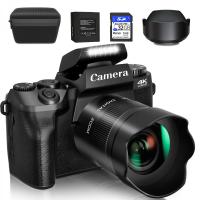
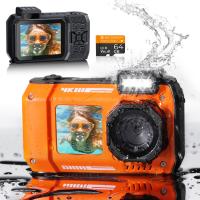
![4K digital camera for photography and video [autofocus and stabilisation] 48 MP video blog camera with SD card, 3](https://img.kentfaith.com/cache/catalog/products/us/GW41.0065/GW41.0065-1-200x200.jpg "4K digital camera for photography and video [autofocus and stabilisation] 48 MP video blog camera with SD card, 3")