How Do You Use A Micro Sd Card?
Micro SD cards are incredibly versatile and useful tools for expanding storage on a variety of devices, from smartphones and tablets to cameras and laptops. However, many people are unsure of how to properly use them. This article will provide a comprehensive guide on how to use a micro SD card, covering everything from choosing the right card to troubleshooting common issues.
Choosing the Right Micro SD Card
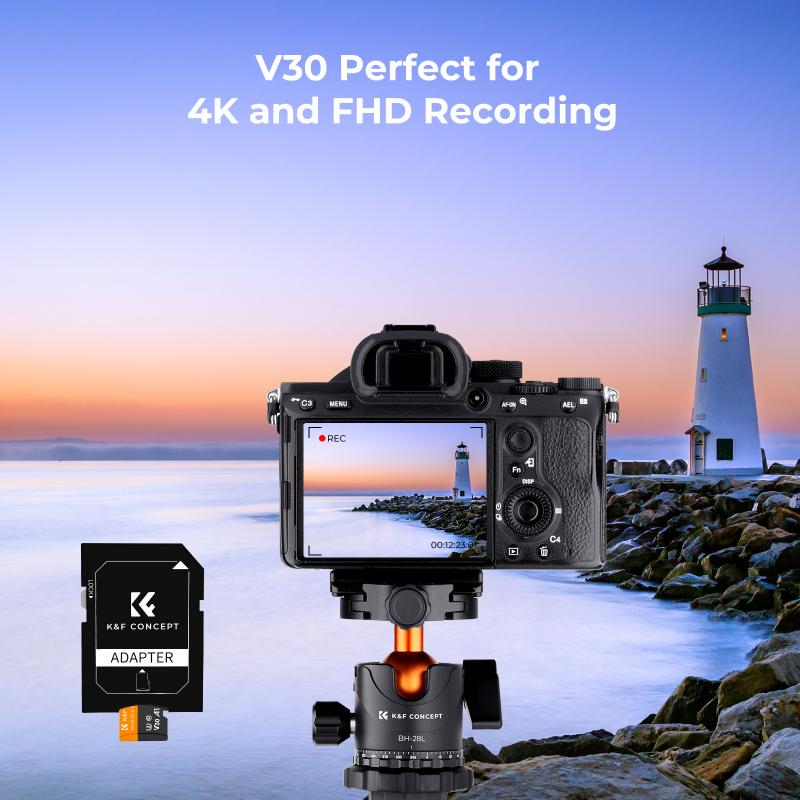
Before you can use a micro SD card, you need to choose the right one for your needs. Micro SD cards come in various capacities, speeds, and classes, and selecting the appropriate one can make a significant difference in performance.
1. Capacity: Micro SD cards range from a few gigabytes (GB) to several terabytes (TB). The capacity you need depends on what you plan to store. For example, if you are using the card for a smartphone, a 32GB or 64GB card might suffice. For high-resolution video recording, you might need a card with 128GB or more.
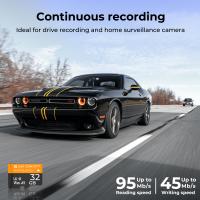
2. Speed Class: The speed class of a micro SD card indicates how quickly data can be written to the card. Common speed classes include Class 2, 4, 6, and 10, with Class 10 being the fastest. For tasks like 4K video recording, a higher speed class is essential.
3. UHS Speed Class: Ultra High Speed (UHS) classes, such as UHS-I and UHS-II, offer even faster data transfer rates. These are particularly useful for professional photography and videography.
4. Application Performance Class: This class, denoted as A1 or A2, is designed for running applications on smartphones and tablets. An A1 or A2 card ensures that apps load quickly and run smoothly.
Inserting the Micro SD Card
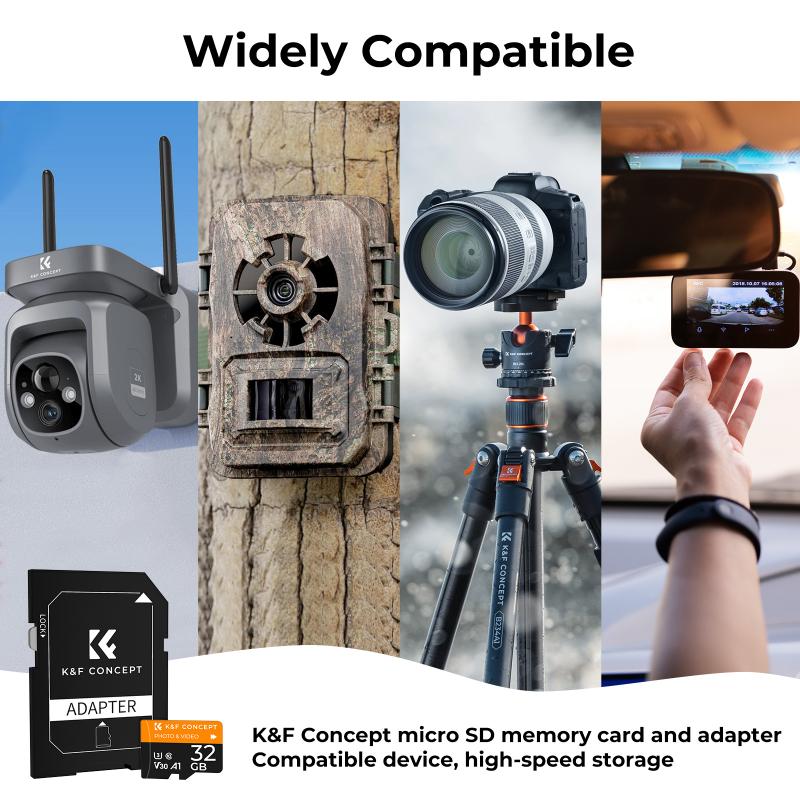
Once you have chosen the right micro SD card, the next step is to insert it into your device. The process varies slightly depending on the device you are using.
1. Smartphones and Tablets:
- Locate the Slot: Most smartphones and tablets have a dedicated micro SD card slot, often located on the side or back of the device.
- Insert the Card: Use a SIM card ejector tool or a paperclip to open the slot. Place the micro SD card into the tray, ensuring it is properly aligned, and then reinsert the tray into the device.
2. Cameras:
- Open the Compartment: Most cameras have a compartment for the battery and memory card. Open this compartment.
- Insert the Card: Slide the micro SD card into the slot, ensuring it clicks into place.
3. Laptops and Computers:
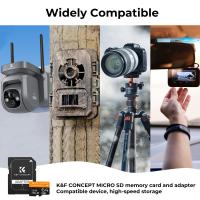
- Use an Adapter: Many laptops and computers have SD card slots but not micro SD card slots. Use a micro SD to SD card adapter to insert the card.
- Insert the Adapter: Place the adapter with the micro SD card into the SD card slot on your laptop or computer.
Formatting the Micro SD Card

Before using a new micro SD card, it is often recommended to format it. Formatting prepares the card for use and ensures compatibility with your device.
1. On Smartphones and Tablets:
- Go to Settings: Navigate to the settings menu on your device.
- Storage: Find the storage section and select the micro SD card.
- Format: Choose the option to format the card. This will erase all data on the card, so ensure you have backed up any important files.
2. On Cameras:
- Menu: Access the camera’s menu.
- Format: Find the format option, usually located in the settings or setup menu, and select it.
3. On Computers:
- File Explorer: Open File Explorer and locate the micro SD card.
- Right-Click: Right-click on the card and select the format option.
- Choose File System: Select the appropriate file system (e.g., FAT32, exFAT) and click start.
Transferring Data to and from the Micro SD Card
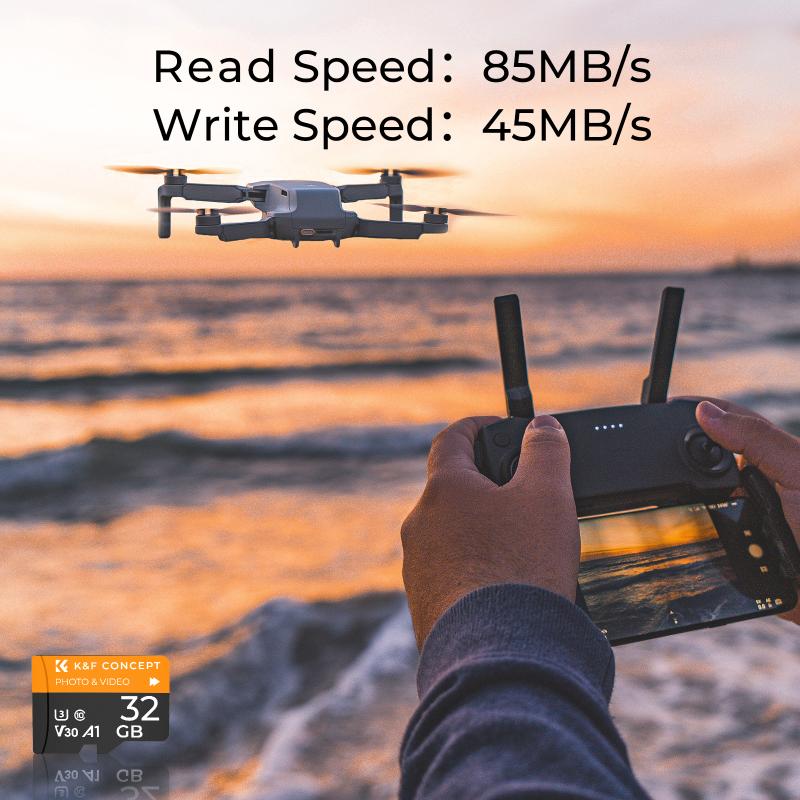
Transferring data to and from a micro SD card is straightforward and can be done using various methods.
1. Using a Smartphone or Tablet:
- File Manager: Use the built-in file manager app to move files between the device’s internal storage and the micro SD card.
- Drag and Drop: Simply drag and drop files to the desired location.
2. Using a Computer:
- Connect the Card: Insert the micro SD card into the computer using an adapter if necessary.
- File Explorer: Open File Explorer and locate the card.
- Drag and Drop: Drag and drop files between the computer and the micro SD card.
3. Using a Camera:
- USB Cable: Connect the camera to the computer using a USB cable and transfer files directly.
- Card Reader: Remove the micro SD card from the camera and use a card reader to connect it to the computer.
Troubleshooting Common Issues
Despite their convenience, micro SD cards can sometimes encounter issues. Here are some common problems and how to resolve them.
1. Card Not Recognized:
- Check Compatibility: Ensure the card is compatible with your device.
- Reinsert the Card: Remove and reinsert the card to ensure it is properly seated.
- Update Drivers: On a computer, update the drivers for the card reader.
2. Slow Performance:
- Check Speed Class: Ensure the card’s speed class is suitable for your needs.
- Format the Card: Formatting the card can sometimes improve performance.
3. Corrupted Files:
- Backup Data: Regularly back up important data to prevent loss.
- Use Recovery Software: If files become corrupted, use data recovery software to attempt to retrieve them.
Micro SD cards are a valuable tool for expanding storage and transferring data across various devices. By choosing the right card, properly inserting and formatting it, and knowing how to transfer data and troubleshoot issues, you can make the most of your micro SD card. Whether you are a casual user or a professional, understanding how to use a micro SD card effectively can enhance your digital experience.
![4K digital camera for photography and video [autofocus and stabilisation] 48 MP video blog camera with SD card, 3](https://img.kentfaith.com/cache/catalog/products/us/GW41.0065/GW41.0065-1-200x200.jpg "4K digital camera for photography and video [autofocus and stabilisation] 48 MP video blog camera with SD card, 3")
![3mm/0.12in Industrial Borescope Inspection Camera with Light 180° 2-Way Articulating [3.28ft Cable]](https://img.kentfaith.com/cache/catalog/products/us/GW45.0108/GW45.0108-1-200x200.jpg "3mm/0.12in Industrial Borescope Inspection Camera with Light 180° 2-Way Articulating [3.28ft Cable]")