How To Connect Bluetooth Earbuds?
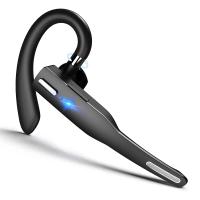
Bluetooth earbuds have become an essential accessory for many people, offering the convenience of wireless audio for a variety of devices. Whether you're using them for music, calls, or gaming, knowing how to connect your Bluetooth earbuds properly is crucial for a seamless experience. In this article, we will walk you through the steps to connect Bluetooth earbuds to different devices, troubleshoot common issues, and provide tips for maintaining a stable connection.
Understanding Bluetooth Technology
Before diving into the connection process, it's helpful to understand the basics of Bluetooth technology. Bluetooth is a wireless communication standard that allows devices to exchange data over short distances. It operates on the 2.4 GHz ISM band and is designed for low power consumption, making it ideal for portable devices like earbuds.
Steps to Connect Bluetooth Earbuds
1. Preparation
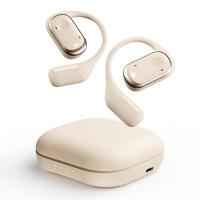
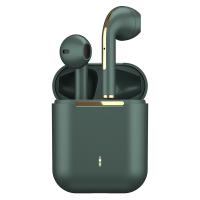
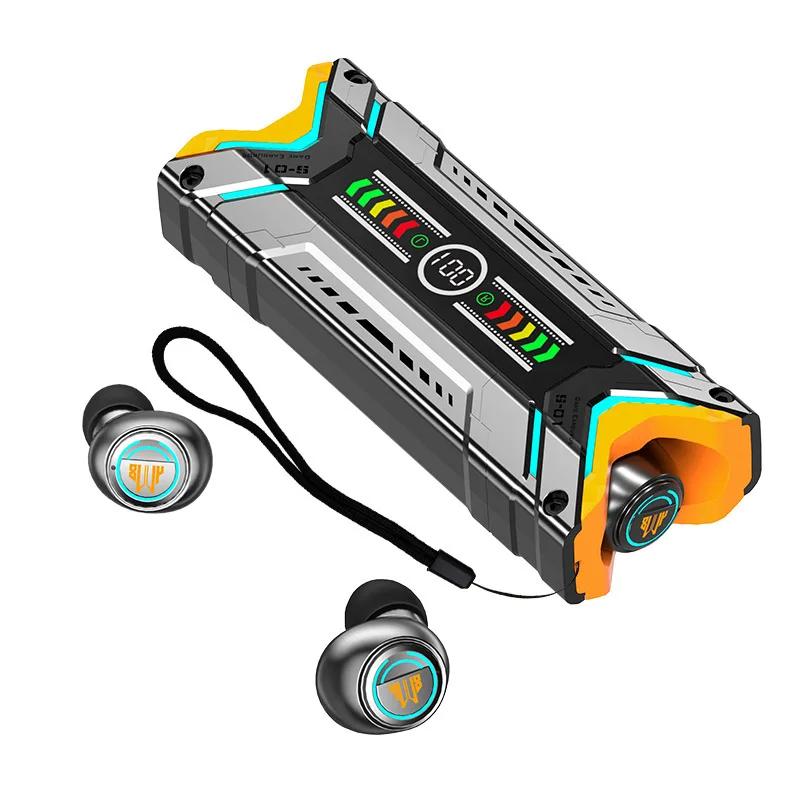
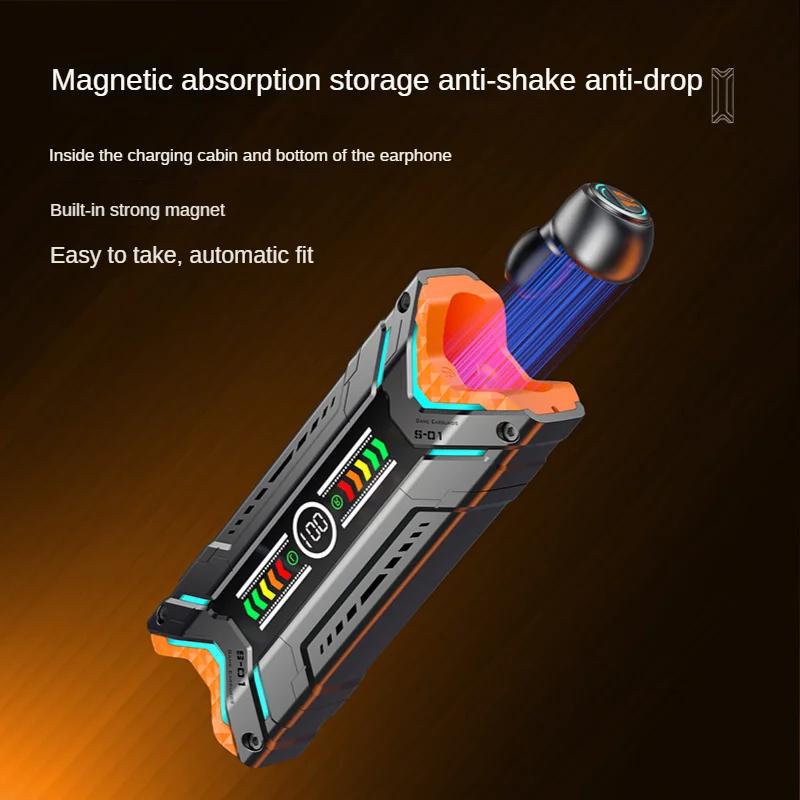
Before you start, ensure that your Bluetooth earbuds are charged. Most earbuds come with a charging case, so place them in the case and connect it to a power source if needed. Also, make sure the device you want to connect to (smartphone, tablet, laptop, etc.) has Bluetooth enabled.
2. Pairing Mode
To connect your Bluetooth earbuds, you need to put them into pairing mode. This process can vary depending on the brand and model, but generally involves the following steps:
- Remove the earbuds from the case: This often automatically turns them on and puts them into pairing mode.
- Press and hold the power button: If the earbuds don't automatically enter pairing mode, press and hold the power button until you see a flashing light or hear an audio cue indicating they are ready to pair.
3. Connecting to a Smartphone
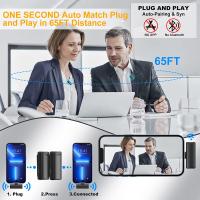
- Open Bluetooth settings: On your smartphone, go to the settings menu and select Bluetooth.
- Search for devices: Your phone will start searching for available Bluetooth devices. Look for the name of your earbuds in the list.
- Select your earbuds: Tap on the name of your earbuds to initiate the connection. You may be prompted to enter a PIN, which is usually "0000" or "1234".
- Confirmation: Once connected, you should see a confirmation message on your phone, and the earbuds will indicate they are paired, either through a light or an audio cue.
4. Connecting to a Laptop or PC
- Open Bluetooth settings: On your laptop or PC, go to the settings menu and select Bluetooth & other devices.
- Add a device: Click on "Add Bluetooth or other device" and select Bluetooth.
- Search for devices: Your computer will start searching for available Bluetooth devices. Look for the name of your earbuds in the list.
- Select your earbuds: Click on the name of your earbuds to initiate the connection. You may be prompted to enter a PIN.
- Confirmation: Once connected, you should see a confirmation message on your computer, and the earbuds will indicate they are paired.
5. Connecting to Other Devices
The process for connecting Bluetooth earbuds to other devices like tablets, smart TVs, or gaming consoles is similar. Always refer to the user manual for specific instructions related to your device.
Troubleshooting Common Issues

Despite following the steps above, you may encounter some issues when trying to connect your Bluetooth earbuds. Here are some common problems and their solutions:
1. Earbuds Not Showing Up in Bluetooth List
- Restart both devices: Turn off your earbuds and the device you're trying to connect to, then turn them back on.
- Reset earbuds: Some earbuds have a reset function. Refer to the user manual for instructions on how to reset your earbuds.
- Update firmware: Ensure that both your earbuds and the device you're connecting to have the latest firmware updates.
2. Connection Drops Frequently
- Interference: Bluetooth operates on the 2.4 GHz band, which can be crowded. Try moving away from other wireless devices or Wi-Fi routers.
- Battery level: Low battery can affect Bluetooth performance. Ensure your earbuds are fully charged.
- Range: Bluetooth has a limited range, typically around 30 feet. Ensure you are within this range.
3. Poor Audio Quality
- Codec compatibility: Some devices support different Bluetooth codecs (SBC, AAC, aptX). Ensure your device and earbuds support the same codec for optimal audio quality.
- Interference: As mentioned earlier, interference can affect audio quality. Try to minimize other wireless devices in the vicinity.
Tips for Maintaining a Stable Connection
To ensure a stable and reliable connection between your Bluetooth earbuds and your device, consider the following tips:
1. Keep Firmware Updated
Manufacturers often release firmware updates to improve performance and fix bugs. Regularly check for updates for both your earbuds and the device you're connecting to.
2. Minimize Interference
Bluetooth signals can be affected by other wireless devices. Try to keep your earbuds and the connected device away from other wireless equipment, such as Wi-Fi routers, microwaves, and cordless phones.
3. Maintain Line of Sight
While Bluetooth can work through walls and other obstacles, maintaining a clear line of sight between your earbuds and the connected device can improve connection stability.
4. Regularly Clean Your Earbuds
Dirt and debris can affect the performance of your earbuds. Regularly clean them with a soft, dry cloth to ensure optimal performance.
Connecting Bluetooth earbuds to your devices is a straightforward process, but it can sometimes be hindered by common issues. By following the steps outlined in this article, you can ensure a smooth and reliable connection. Remember to keep your devices updated, minimize interference, and maintain your earbuds for the best possible experience. Whether you're using them for music, calls, or gaming, properly connected Bluetooth earbuds can significantly enhance your wireless audio experience.