Can You Connect Bluetooth Headset To Nintendo Switch?
The Nintendo Switch is undoubtedly a versatile gaming console that has garnered a massive following since its release. Portable, dockable, and adaptable, it provides gamers the convenience of playing on the go or on the big screen. However, one question that has been frequently asked by users is: Can you connect a Bluetooth headset to the Nintendo Switch? With the advent of wireless technologies, particularly Bluetooth audio, this concern has risen in popularity. Fortunately, there is an answer, and the short version is: Yes, you can connect a Bluetooth headset to your Nintendo Switch.
This article will walk you through the compatibility, limitations, and step-by-step instructions on how to connect a Bluetooth headset to the Nintendo Switch, as well as offer practical solutions to address any potential issues. Whether you’re a new Switch owner or a seasoned user, this guide will help you fully enjoy wireless audio during your gaming sessions.
Bluetooth Headset Support on the Nintendo Switch: An Overview
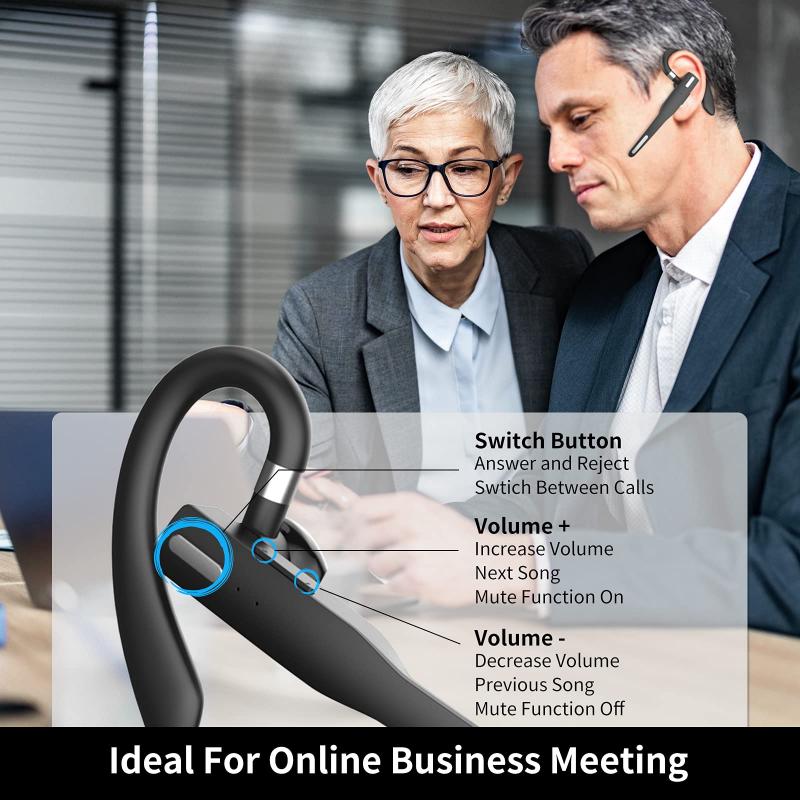
For the longest time after its release in 2017, the Nintendo Switch did not directly support Bluetooth audio. Users had to rely on wired headphones or third-party Bluetooth adapters to connect their wireless headsets. However, an update rolled out in September 2021 changed everything. Nintendo added native support for Bluetooth audio, making it possible for players to connect their Bluetooth headphones or earbuds without the need for additional accessories. This feature works for both the standard Nintendo Switch and the Nintendo Switch Lite.
That said, while this capability exists, there are some limitations players must take into account. Here’s what you need to know:
Device Compatibility: Not all Bluetooth headsets are compatible, though the vast majority of modern Bluetooth-enabled devices should work.
Microphone Use Limitation: You cannot use the built-in microphone of your Bluetooth headset for in-game voice chat. Nintendo's Bluetooth update only allows for audio output.
Connected Device Limit: When a Bluetooth headset is connected, you can pair no more than two wireless controllers to the Switch.
Audio Latency: Some users might experience slight latency between the video and audio when using Bluetooth headsets. This varies depending on the headset's hardware and Bluetooth version.
Understanding these limitations is important because it ensures players don’t experience unnecessary frustration or confusion during setup or gameplay.
How to Connect a Bluetooth Headset to Your Nintendo Switch
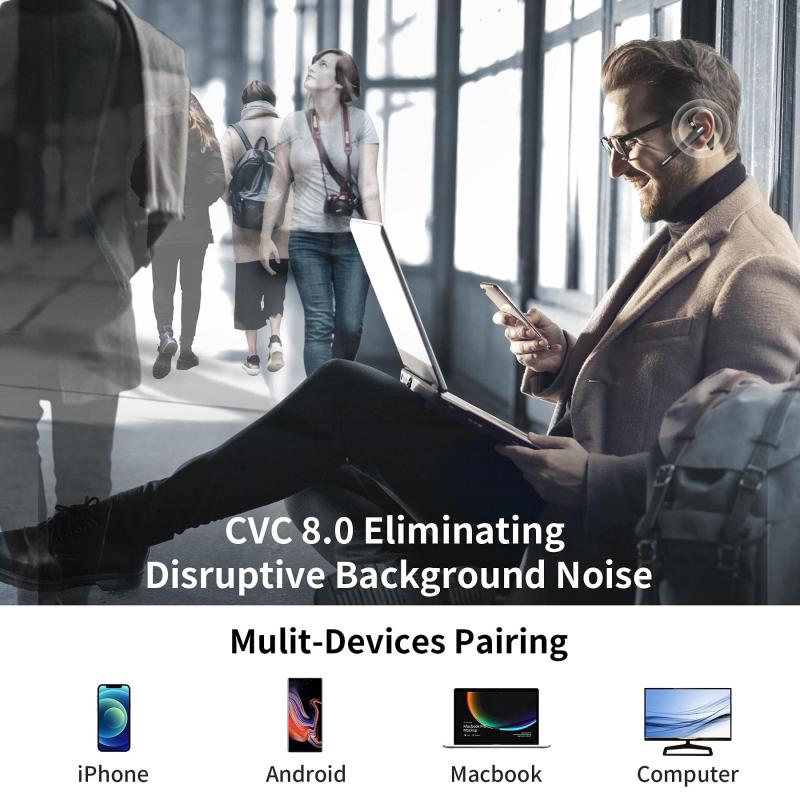
The process of connecting a Bluetooth headset to your Nintendo Switch is straightforward and can be accomplished in just a few steps. Here's a step-by-step guide:
1. Update Your Nintendo Switch: Ensure that your Nintendo Switch system software is up-to-date. To do this, navigate to "System Settings" > "System" > "System Update." If an update is available, install it.
2. Activate Bluetooth Audio on Your Switch:
- Go to "System Settings" and scroll down to the "Bluetooth Audio" option.
- Select it, and a notification will appear prompting you to pair a new device.
3. Prepare Your Headset for Pairing:
- Place your Bluetooth headset in pairing mode. This step varies depending on the brand. Most headsets enter pairing mode by holding down the power button or a dedicated Bluetooth button until a light flashes.
4. Search for Your Device:
- On the Nintendo Switch, select "Add Device" within the Bluetooth Audio menu.
- The system will scan for nearby Bluetooth devices. Once your headset appears in the list, select it to begin pairing.
5. Connection Success:
- After a few moments, the Switch will connect to your headset. You should receive a confirmation message on the screen.
- Your audio should now route directly to your Bluetooth headset.
That's it! Your Bluetooth headset is now connected, and you can enjoy wire-free audio while playing your favorite games.
Common Issues and Troubleshooting
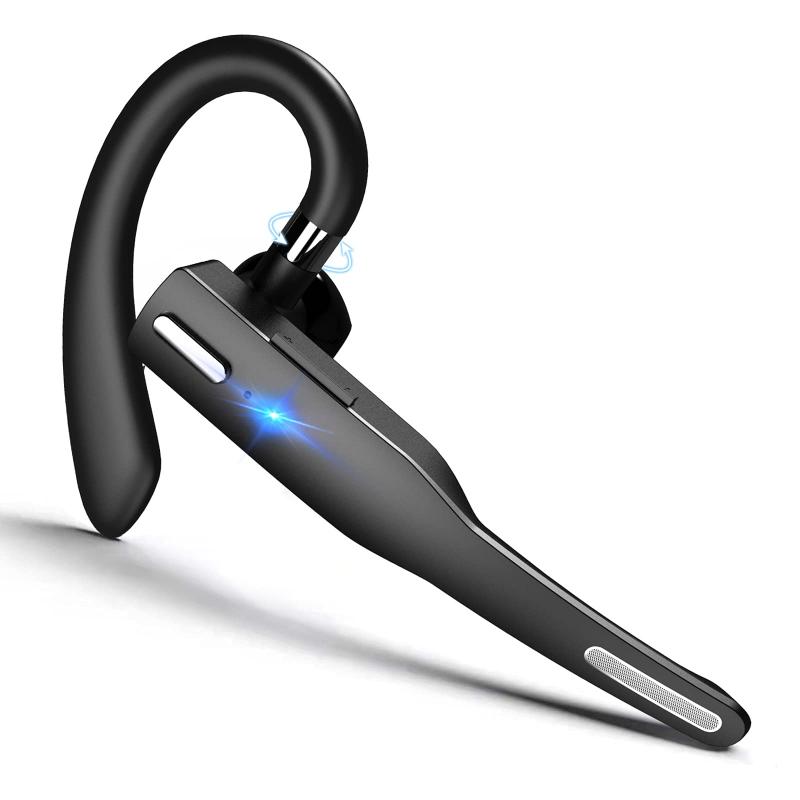
Even though the process is generally simple, some users may encounter hiccups when connecting their Bluetooth headset to the Nintendo Switch. Below are the most common issues and how to fix them.
1. Bluetooth Device Not Detected:
- Ensure your headset is in pairing mode. If it’s not, the Switch won’t detect it. Refer to the user manual of your headset for instructions on enabling pairing mode.
- Verify that no other devices (such as your smartphone) are already connected to your Bluetooth headset.
- Turn off other Bluetooth devices in the vicinity to reduce interference.
2. Audio Latency:
- Bluetooth audio latency can be an issue with some headsets, particularly older models. If you notice a delay between the visuals and sound, consider switching to a low-latency Bluetooth headset or using a wired headphone for a seamless experience.
3. Connection Drops:
- If the connection between your Switch and headset keeps dropping, try disconnecting and re-pairing the device. Additionally, ensure that your headset is fully charged to rule out power-related issues.
4. Bluetooth Audio Not Working in Multiplayer Sessions:
- Keep in mind that the Nintendo Switch only supports Bluetooth audio output and does not allow the use of Bluetooth microphones for voice chat within games. If you need voice chat, consider using the Nintendo Switch Online app on a smartphone or connecting a separate microphone to your Switch.
5. Unable to Connect More Than Two Wireless Controllers:
- When using a Bluetooth headset, the Switch limits the number of wireless controllers to two. To bypass this, disconnect your Bluetooth headset and revert to a wired audio solution.
Enhancing the Experience: Additional Tips
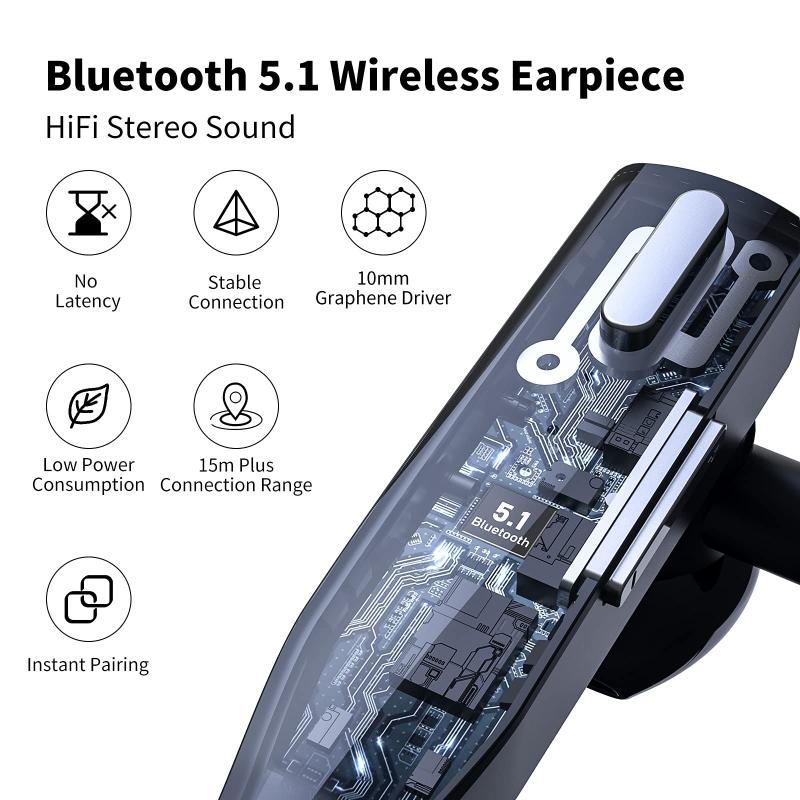
To optimize your gaming experience with Bluetooth headsets on the Nintendo Switch, consider the following tips:
1. Invest in Quality Headsets:
- Look for headphones with a strong signal range, low latency, and high-quality audio output to enhance your gaming sessions. Brands like Bose, Sony, JBL, and SteelSeries offer great Bluetooth options for gamers.
2. Keep Your Firmware Updated:
- Both the Nintendo Switch and your Bluetooth headset firmware should be regularly updated. Manufacturers often release updates that improve compatibility and fix bugs.
3. Use an Adapter for Advanced Features:
- If the Switch’s native Bluetooth options aren’t cutting it for you, consider purchasing a third-party Bluetooth transmitter. This can provide better compatibility and a wider range of features, such as microphone support and reduced latency.
4. Manage Battery Life:
- Wireless gaming relies heavily on battery life. To avoid interruptions, make sure both your Switch and your Bluetooth headset are fully charged before extended gaming sessions.
Final Thoughts
The addition of Bluetooth audio support has transformed the Nintendo Switch into an even more versatile console, offering users the freedom to game without the hassle of wired headphones. While the setup and functionality are relatively simple, it's important to consider the system's limitations and choose compatible devices for the best experience.
By following the guidelines above, you can seamlessly integrate Bluetooth audio into your gameplay with minimal hassle. Whether you're immersing yourself in the vast world of *The Legend of Zelda: Tears of the Kingdom* or battling it out in frenetic multiplayer matches on *Super Smash Bros. Ultimate*, the convenience of wireless audio can elevate your gaming adventure. Consider investing in a high-quality Bluetooth headset to truly maximize your enjoyment of the Nintendo Switch’s audio capabilities.
In the ever-evolving world of gaming, wireless technologies are here to stay, and the Nintendo Switch has made commendable efforts to keep pace. So go ahead, pair up your favorite Bluetooth headset, and step into your next gaming journey free of wires and full of immersive sound.