How To Use A Sd Card?
In today's digital age, SD cards have become an essential tool for expanding storage in various devices, from cameras and smartphones to laptops and gaming consoles. Despite their widespread use, many people still have questions about how to properly use an SD card. This article aims to provide a comprehensive guide on how to use an SD card, covering everything from choosing the right card to troubleshooting common issues.
Understanding SD Cards
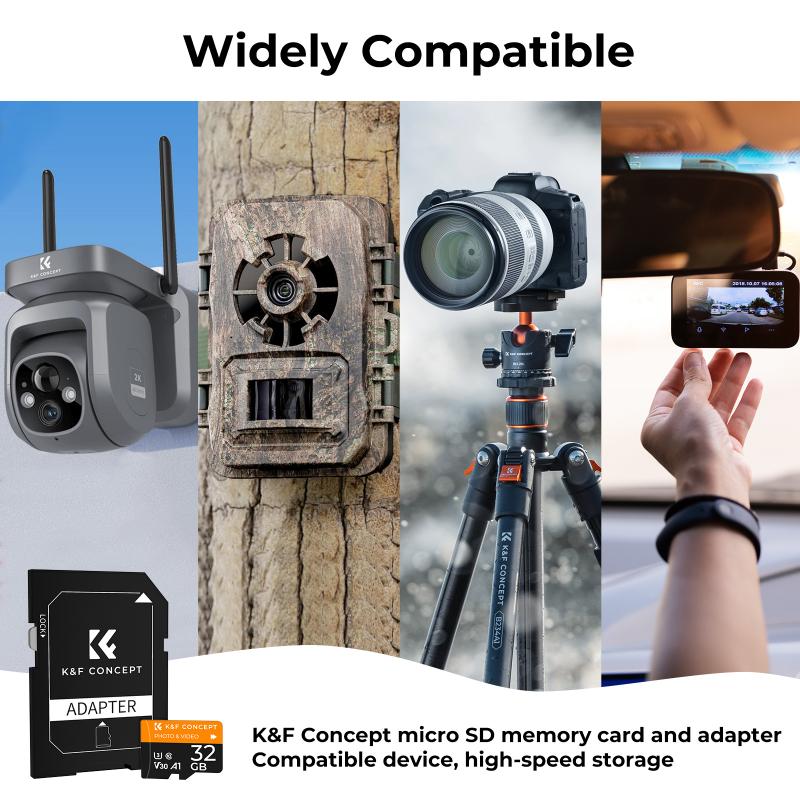
Before diving into the practical aspects of using an SD card, it's important to understand what an SD card is and the different types available. SD stands for Secure Digital, and these cards come in various sizes and capacities. The most common types are:
1. SD (Secure Digital) Card: The original format, typically used in older devices.
2. SDHC (Secure Digital High Capacity) Card: Offers higher storage capacities, ranging from 4GB to 32GB.
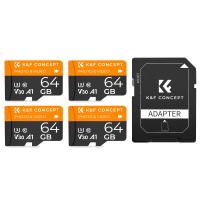
3. SDXC (Secure Digital Extended Capacity) Card: Provides even larger storage capacities, from 64GB up to 2TB.
4. MicroSD Card: A smaller version of the SD card, commonly used in smartphones and tablets. MicroSD cards also come in SDHC and SDXC formats.
Choosing the Right SD Card

When selecting an SD card, consider the following factors:
1. Capacity: Determine how much storage you need. For example, if you're a photographer, you might need a card with a larger capacity to store high-resolution images.
2. Speed Class: SD cards have different speed classes, which indicate how quickly data can be written to the card. The speed class is especially important for tasks like recording high-definition video. Common speed classes include Class 2, 4, 6, and 10, with Class 10 being the fastest.
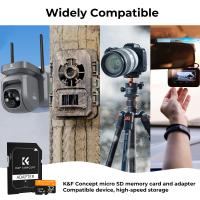
3. Compatibility: Ensure that the SD card is compatible with your device. Check the device's manual or specifications to see which types of SD cards it supports.
Inserting and Formatting an SD Card
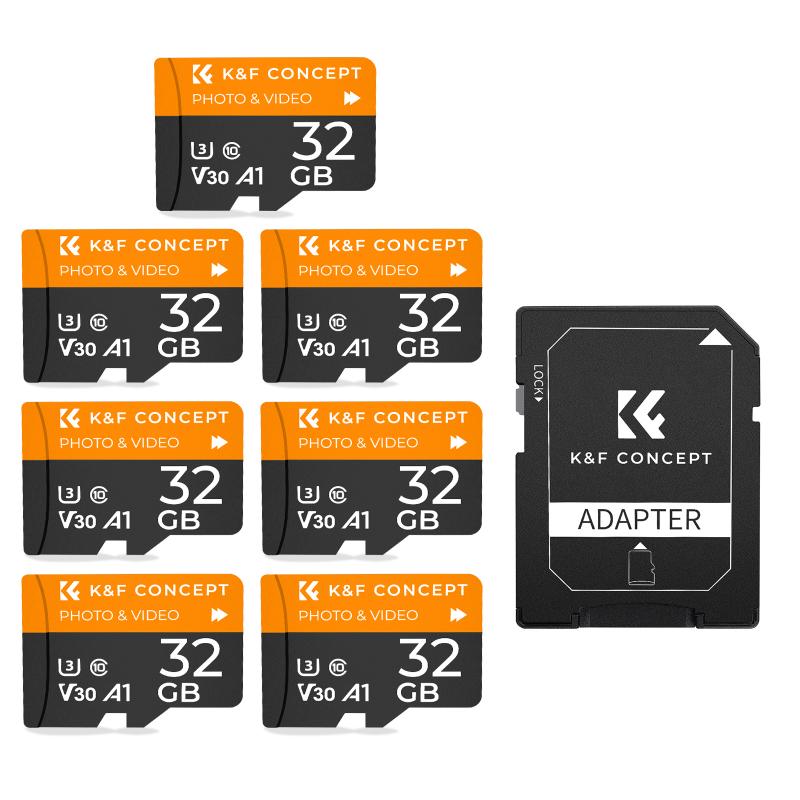
Once you've chosen the right SD card, the next step is to insert it into your device and format it. Here's how to do it:
1. Inserting the SD Card:
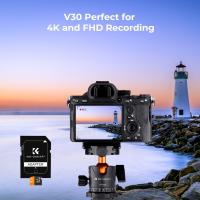
- For Cameras: Open the battery compartment or the dedicated SD card slot, insert the card with the label facing up, and push it in until it clicks into place.
- For Smartphones/Tablets: Locate the SD card slot, which is often found on the side of the device. Use a SIM card ejector tool or a paperclip to open the slot, insert the card, and close the slot.
- For Laptops: Insert the SD card into the SD card reader slot, usually located on the side of the laptop.
2. Formatting the SD Card:
- On Cameras: Navigate to the settings menu, find the format option, and follow the on-screen instructions.
- On Smartphones/Tablets: Go to the settings menu, select storage, find the SD card, and choose the format option.
- On Laptops: Open the file explorer, right-click on the SD card, select format, choose the file system (usually FAT32 or exFAT), and click start.
Transferring Data to and from an SD Card
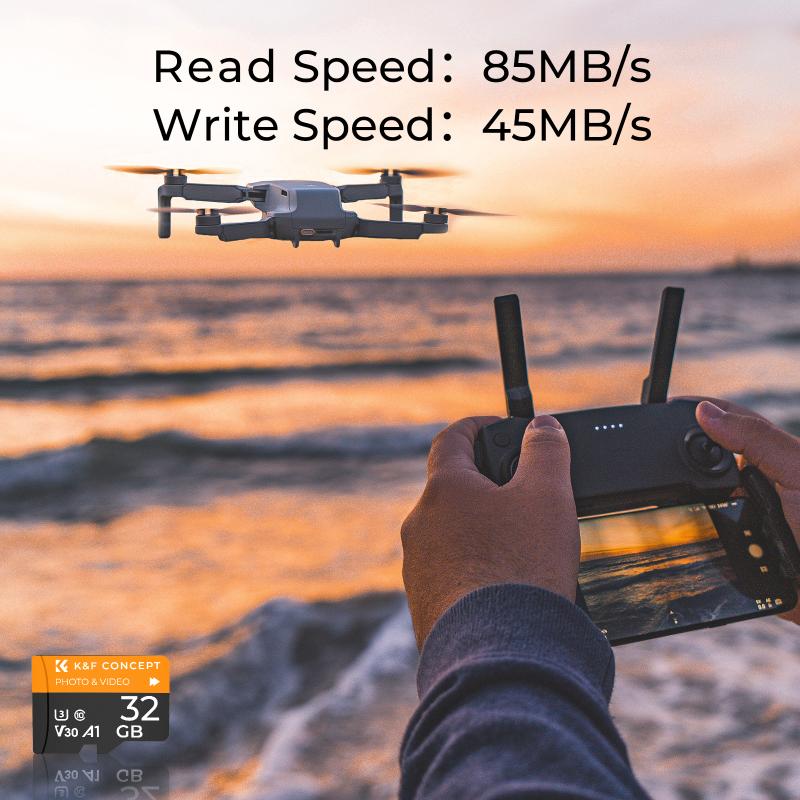
Transferring data to and from an SD card is straightforward. Here are the steps for different devices:
1. Using a Camera:
- Transferring Photos to a Computer: Remove the SD card from the camera and insert it into the computer's SD card reader. Open the file explorer, navigate to the SD card, and copy the photos to your computer.
- Transferring Photos to a Smartphone: Use an SD card adapter to connect the card to your smartphone, then use a file manager app to transfer the photos.
2. Using a Smartphone/Tablet:
- Transferring Files to a Computer: Connect the device to your computer using a USB cable, enable file transfer mode, and copy the files from the SD card to your computer.
- Transferring Files to Another Device: Use a file manager app to move files between the SD card and the device's internal storage or another SD card.
3. Using a Laptop:
- Transferring Files: Insert the SD card into the laptop's SD card reader, open the file explorer, and drag and drop files between the SD card and the laptop.
Maintaining and Troubleshooting an SD Card
To ensure the longevity and reliability of your SD card, follow these maintenance tips:
1. Avoid Physical Damage: Handle the SD card with care, avoiding bending or dropping it.
2. Keep It Clean: Ensure the card's contacts are clean and free of dust. Use a soft cloth to wipe them if necessary.
3. Safely Eject the Card: Always use the "eject" or "safely remove hardware" option on your device before removing the SD card to prevent data corruption.
If you encounter issues with your SD card, here are some common troubleshooting steps:
1. Card Not Recognized: If your device doesn't recognize the SD card, try reinserting it or using it in another device to determine if the card or the device is the issue.
2. Data Corruption: If files on the SD card become corrupted, try using data recovery software to retrieve the files. If the card is still under warranty, consider contacting the manufacturer for a replacement.
3. Slow Performance: If the SD card is performing slowly, try formatting it to improve speed. Ensure you're using a card with an appropriate speed class for your needs.
SD cards are versatile and essential tools for expanding storage and transferring data across various devices. By understanding the different types of SD cards, choosing the right one for your needs, and following proper usage and maintenance practices, you can make the most of your SD card and ensure its longevity. Whether you're a photographer, a smartphone user, or someone who needs extra storage for your laptop, this guide provides the knowledge you need to effectively use an SD card.
![4K digital camera for photography and video [autofocus and stabilisation] 48 MP video blog camera with SD card, 3](https://img.kentfaith.com/cache/catalog/products/us/GW41.0065/GW41.0065-1-200x200.jpg "4K digital camera for photography and video [autofocus and stabilisation] 48 MP video blog camera with SD card, 3")