How To Format Sd Card On Computer?
Formatting an SD card on a computer is a common task that many users need to perform for various reasons, such as preparing the card for use in a new device, removing all data, or fixing file system errors. This article will guide you through the process of formatting an SD card on both Windows and macOS systems, ensuring that you can complete the task efficiently and correctly.
Understanding the Need for Formatting
Before diving into the step-by-step instructions, it's important to understand why you might need to format an SD card. Here are some common reasons:
1. Preparing for a New Device: Different devices may require specific file systems. Formatting ensures compatibility.
2. Removing All Data: Formatting is a quick way to erase all data on the card.
3. Fixing File System Errors: If the SD card is corrupted or has file system errors, formatting can often resolve these issues.
4. Changing File System: You might need to change the file system from FAT32 to exFAT or NTFS, depending on your needs.
Precautions Before Formatting
Formatting an SD card will erase all data on it. Therefore, it is crucial to back up any important data before proceeding. Additionally, ensure that the SD card is not write-protected. Some SD cards have a physical switch that can be toggled to enable or disable write protection.
Formatting an SD Card on Windows
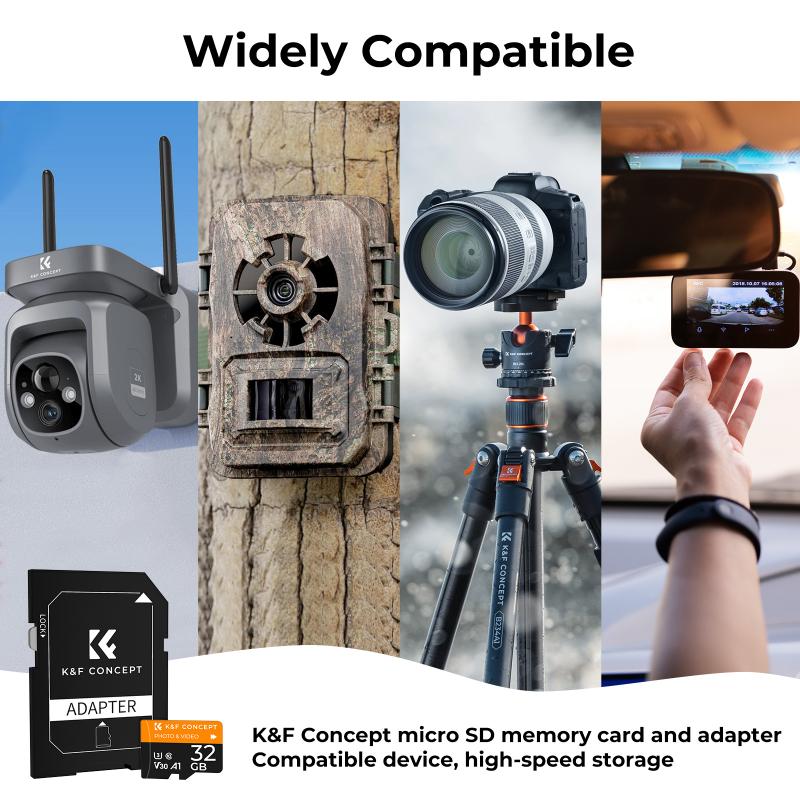
Step 1: Insert the SD Card

Insert the SD card into your computer's SD card slot or use an external card reader. Ensure that the card is properly connected and recognized by the system.
Step 2: Open File Explorer
Open File Explorer by pressing `Win + E` or by clicking on the File Explorer icon in the taskbar.
Step 3: Locate the SD Card
In File Explorer, locate the SD card under "This PC" or "My Computer." It will be listed as a removable drive.
Step 4: Right-Click and Select Format
Right-click on the SD card drive and select "Format" from the context menu. This will open the Format dialog box.
Step 5: Choose File System and Allocation Unit Size
In the Format dialog box, you will need to choose the file system. The options typically include:
- FAT32: Suitable for SD cards up to 32GB. Compatible with most devices.
- exFAT: Suitable for SD cards larger than 32GB. Compatible with newer devices.
- NTFS: Suitable for use with Windows systems but may not be compatible with all devices.
For most users, FAT32 or exFAT will be the appropriate choice. You can leave the Allocation Unit Size at the default setting unless you have specific requirements.
Step 6: Start the Formatting Process
Ensure that the "Quick Format" option is checked if you want a faster format. Uncheck it for a more thorough format. Click "Start" to begin the formatting process. A warning will appear, reminding you that all data will be erased. Confirm to proceed.
Step 7: Complete the Formatting
Once the formatting process is complete, a notification will appear. You can now safely eject the SD card by right-clicking on the drive and selecting "Eject."
Formatting an SD Card on macOS
Step 1: Insert the SD Card
Insert the SD card into your Mac's SD card slot or use an external card reader. Ensure that the card is properly connected and recognized by the system.
Step 2: Open Disk Utility
Open Disk Utility by navigating to `Applications > Utilities > Disk Utility` or by using Spotlight search (`Cmd + Space` and type "Disk Utility").
Step 3: Select the SD Card
In Disk Utility, locate the SD card in the list of drives on the left-hand side. Select the SD card (not the partition).
Step 4: Click on Erase
With the SD card selected, click on the "Erase" button at the top of the Disk Utility window. This will open the Erase dialog box.
Step 5: Choose Format and Name
In the Erase dialog box, you will need to choose the format. The options typically include:
- MS-DOS (FAT): Equivalent to FAT32, suitable for SD cards up to 32GB.
- ExFAT: Suitable for SD cards larger than 32GB.
- Mac OS Extended (Journaled): Suitable for use with macOS systems but may not be compatible with all devices.
For most users, MS-DOS (FAT) or ExFAT will be the appropriate choice. You can also give the SD card a name in the "Name" field.
Step 6: Erase the SD Card
Click "Erase" to begin the formatting process. A warning will appear, reminding you that all data will be erased. Confirm to proceed.
Step 7: Complete the Formatting
Once the formatting process is complete, a notification will appear. You can now safely eject the SD card by clicking the eject icon next to the SD card in the Finder sidebar.
Troubleshooting Common Issues
SD Card Not Recognized
If your SD card is not recognized by the computer, try the following steps:
1. Check the Connection: Ensure that the SD card is properly inserted into the slot or card reader.
2. Try a Different Port or Reader: The issue might be with the port or card reader. Try a different one.
3. Check for Write Protection: Ensure that the SD card is not write-protected.
Formatting Errors
If you encounter errors during the formatting process, try the following:
1. Use Disk Management (Windows): Open Disk Management (`Win + X` and select "Disk Management") and try formatting the SD card from there.
2. Use Terminal (macOS): Open Terminal and use the `diskutil` command to format the SD card. For example: `diskutil eraseDisk FAT32 SDCARD MBRFormat /dev/disk2` (replace `/dev/disk2` with the correct disk identifier).
Formatting an SD card on a computer is a straightforward process, whether you are using Windows or macOS. By following the steps outlined in this article, you can ensure that your SD card is properly formatted and ready for use. Remember to back up any important data before formatting, and choose the appropriate file system based on your needs. If you encounter any issues, the troubleshooting tips provided should help you resolve them. With a properly formatted SD card, you can enjoy seamless performance and compatibility with your devices.
![4K digital camera for photography and video [autofocus and stabilisation] 48 MP video blog camera with SD card, 3](https://img.kentfaith.com/cache/catalog/products/us/GW41.0065/GW41.0065-1-200x200.jpg "4K digital camera for photography and video [autofocus and stabilisation] 48 MP video blog camera with SD card, 3")