How To Open Locked Memory Card?
Unlocking a locked memory card can be a frustrating experience, especially when you need to access important data stored on it. Whether it's a physical lock or a software-based issue, there are several methods you can try to regain access to your memory card. In this article, we will explore various techniques to unlock a locked memory card, addressing both physical and digital locks. By the end of this guide, you should have a clear understanding of how to troubleshoot and resolve this common problem.
Understanding the Types of Locks
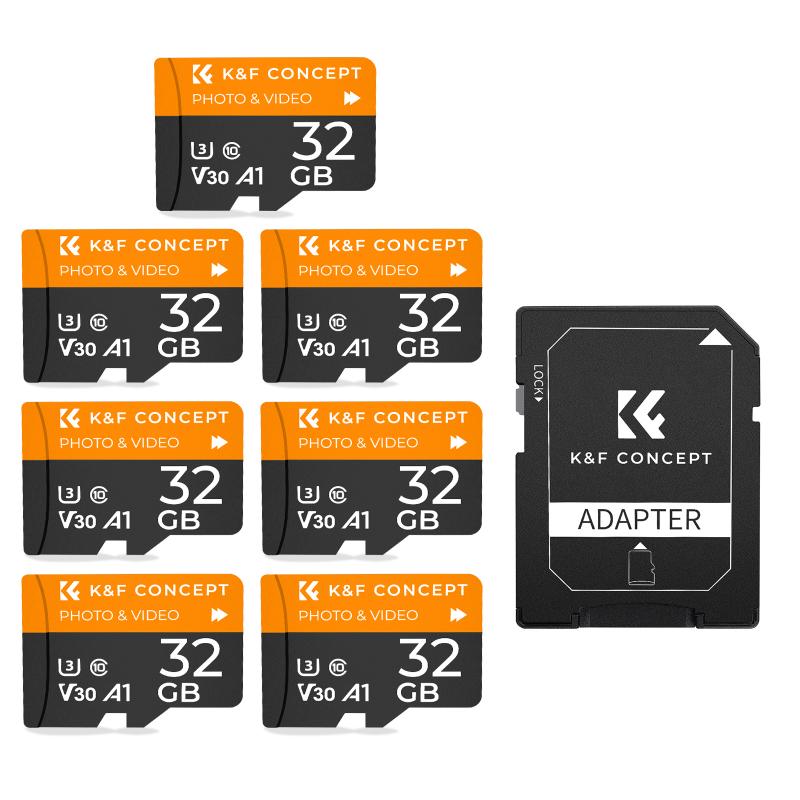
Before diving into the solutions, it's essential to understand the types of locks that can affect a memory card:
1. Physical Lock: Many SD cards come with a small switch on the side that can be toggled to lock or unlock the card. This is a hardware feature designed to prevent accidental data deletion or modification.
2. Password Protection: Some memory cards can be password-protected using software. This is common in mobile devices and cameras that offer encryption features.
3. File System Corruption: Sometimes, a memory card may appear locked due to file system corruption or errors. This is usually a software issue that can be resolved with the right tools.
Method 1: Unlocking a Physically Locked Memory Card
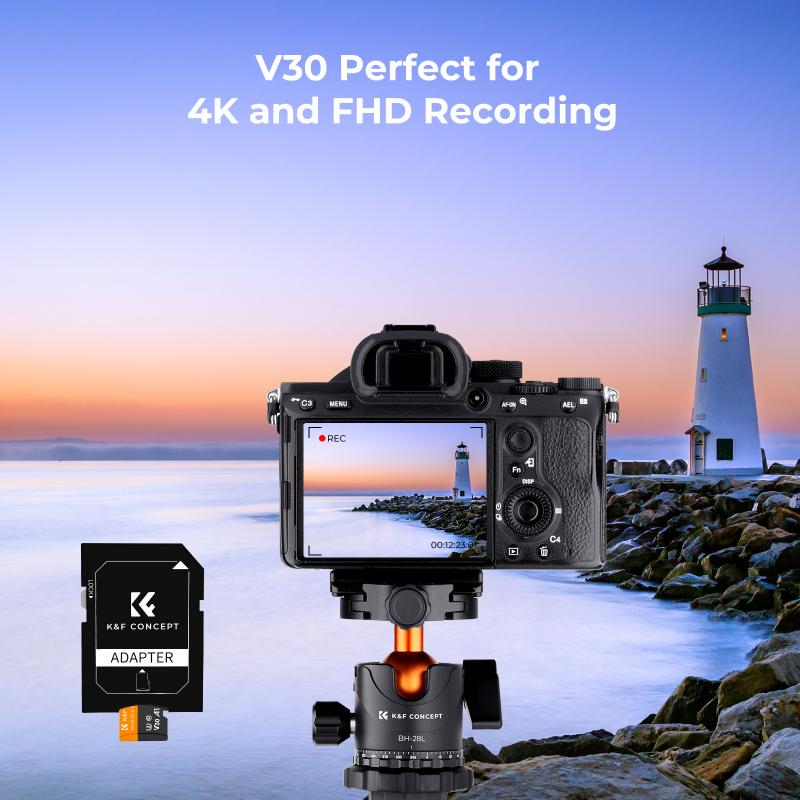
If your memory card has a physical lock switch, follow these steps:
1. Locate the Lock Switch: On the side of the SD card, you will find a small switch. This switch can be toggled up or down.
2. Toggle the Switch: Move the switch to the "unlock" position. This is usually indicated by an icon or the word "unlock" on the card itself.
3. Test the Card: Insert the memory card into your device and check if it is now accessible. If it is still locked, try toggling the switch back and forth a few times to ensure it is properly set.
Method 2: Removing Password Protection
If your memory card is password-protected, you will need to remove the password to access the data. Here are some methods to do this:
Using a Mobile Device

1. Insert the Card: Place the memory card into the device that originally set the password.
2. Access Security Settings: Navigate to the device's security settings. This is usually found in the settings menu under "Security" or "Storage."
3. Remove Password: Look for an option to remove or reset the password. You may need to enter the current password to proceed.
4. Test the Card: Once the password is removed, test the card in another device to ensure it is accessible.
Using a Computer
1. Card Reader: Insert the memory card into a card reader and connect it to your computer.
2. Software Tools: Use software tools like SD Card Formatter or Disk Management to format the card. Note that this will erase all data on the card, so use this as a last resort.
3. Format the Card: Follow the software instructions to format the card, which will remove any password protection.
Method 3: Fixing File System Corruption
If your memory card is locked due to file system corruption, you can try the following steps:
1. Insert the Card: Place the memory card into a card reader and connect it to your computer.
2. Check for Errors: Open "This PC" or "My Computer," right-click on the memory card, and select "Properties."
3. Tools Tab: Go to the "Tools" tab and click on "Check" under the "Error checking" section.
4. Scan and Repair: Follow the prompts to scan and repair any file system errors. This process may take some time, depending on the size of the card and the extent of the corruption.
5. Test the Card: Once the scan is complete, safely eject the card and test it in your device.
Method 4: Using Third-Party Software
Several third-party software tools can help unlock a locked memory card. Some popular options include:
1. Recuva: This is a data recovery tool that can also help fix file system errors and unlock memory cards.
2. EaseUS Data Recovery Wizard: Another powerful tool for data recovery and fixing corrupted memory cards.
3. SD Card Formatter: This tool is specifically designed for formatting SD cards and can help remove locks caused by file system issues.
Preventing Future Lock Issues
To avoid encountering locked memory cards in the future, consider the following tips:
1. Regular Backups: Always keep a backup of important data stored on your memory card. This will ensure you don't lose valuable information if the card becomes locked or corrupted.
2. Handle with Care: Physical damage can cause a memory card to malfunction. Handle your cards with care and avoid exposing them to extreme temperatures or moisture.
3. Use Reliable Devices: Ensure that the devices you use with your memory card are reliable and free from malware. Infected devices can corrupt the file system on your card.
4. Regular Scans: Periodically scan your memory card for errors using your computer's built-in tools or third-party software.
Unlocking a locked memory card can be a straightforward process if you know the right steps to take. Whether it's a physical lock, password protection, or file system corruption, there are multiple methods to regain access to your data. By following the techniques outlined in this article, you should be able to troubleshoot and resolve most issues related to locked memory cards. Remember to handle your memory cards with care and regularly back up your data to prevent future problems.