How To Transfer Photos From Wifi Camera?
Transferring photos from a WiFi-enabled camera to other devices is one of the most common tasks hobbyists, photographers, and casual users need to master. This process can seem daunting if you're not tech-savvy, but it’s more straightforward than you might think. Connectivity through WiFi allows for wireless data transfers, eliminating the need for cables or memory card adapters. This guide will walk you through the practical steps for transferring photos from a WiFi-enabled camera to various devices, addressing common challenges along the way.
Understanding WiFi-Enabled Cameras
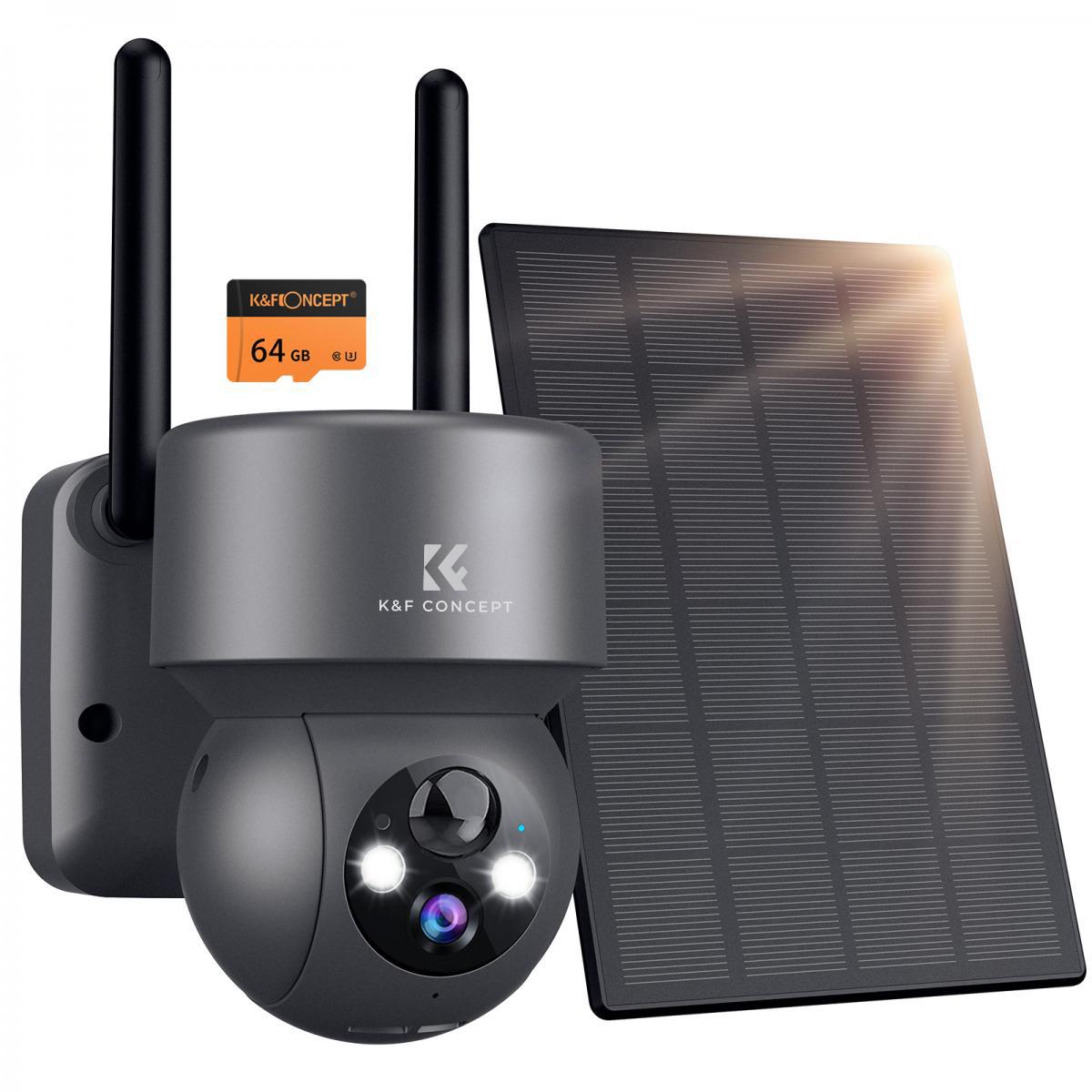
A WiFi-enabled camera is designed to establish a direct wireless connection to other devices such as smartphones, tablets, or computers, allowing for the transfer of media files like photos and videos. Many modern cameras come equipped with built-in WiFi functionality, and some even pair this with companion apps for a seamless user experience. If you’ve made an investment in one of these devices, learning how to use its WiFi feature will save you time and streamline your workflow.
The steps involved can vary depending on the brand and model of your camera, as well as on the device you are connecting to (e.g., iPhone, Android, or computer). To make it easier, we’ll cover universal steps and also highlight some brand-specific tips as examples.
General Preparation for WiFi Photo Transfer
Before you start, make sure you’ve completed these basic preparation steps:
1. Check Your Camera’s Capabilities: Ensure that your camera has working WiFi functionality. Refer to the user manual or the manufacturer's website to confirm how it connects to other devices.
2. Install the Companion App (if applicable): Most WiFi-enabled cameras have a dedicated app (e.g., Canon Camera Connect, Nikon SnapBridge, Sony Imaging Edge). Download the app to your smartphone or tablet from your app store.
3. Connect to the Same WiFi Network: If your camera connects to your home or office WiFi network, make sure your camera and the receiving device are on the same network. Some cameras create their own WiFi hotspot (more on this below), in which case you’ll connect directly to the camera’s network.
4. Charge Your Devices: Ensure both your camera and the receiving device have sufficient battery life. Transferring many high-resolution photos can take some time and drain both batteries.
Steps to Transfer Photos Wirelessly
1. Connecting Your WiFi Camera and Smartphone
Step 1: Turn on the camera’s WiFi mode. Depending on your camera model, you might need to go to the camera's menu and manually turn on WiFi.
Step 2: On your smartphone, go to the WiFi settings, and look for the network name (SSID) of your camera. Connect to it using the default password (found in your camera’s manual or app).
Step 3: Open the camera’s companion app. Once connected, you can browse through the images stored on your camera directly from your smartphone. Select the photos you want to transfer, and tap on "Download" or "Save to Phone."
2. Using Direct Transfer to Computer
Some cameras allow direct WiFi transfers to a computer without an app.
Step 1: Enable the WiFi feature on your camera and search for available networks.
Step 2: From your computer, find the camera's WiFi network, and connect.
Step 3: Using the camera's interface, select the photos you wish to transfer.
Step 4: The files will be automatically sent to your computer’s default download location.
3. Transferring via Cloud Services
Step 1: Some newer cameras have built-in support for uploading photos to cloud services like Dropbox, Google Drive, or OneDrive. Check if your camera supports this feature.
Step 2: Use your camera's app or interface to log into your cloud service account.
Step 3: Select the photos you'd like to transfer, and upload them to the cloud. From there, you can access the files on any connected device.
4. Using Email or Messaging Apps
If you want to send only a few images quickly:
- Transfer photos to your smartphone using the steps above.
- Once on your phone, you can email the photos or send them through messaging apps such as WhatsApp or iMessage.
5. Batch Transfer with File Managers
For more advanced users, you can connect your camera and phone/computer on the same local WiFi network and use FTP (File Transfer Protocol):
- Check if your camera supports FTP.
- Set your camera as an FTP server.
- On your computer or smartphone, use a file manager with FTP capabilities to transfer files.
Common Issues and How to Solve Them
Problem 1: Can’t Detect Camera’s WiFi
Solution 1: Ensure your camera’s WiFi mode is enabled.
Solution 2: Check your smartphone’s WiFi settings and ensure it’s trying to connect to the right SSID.
Solution 3: Restart your camera and smartphone. Some firmware-related glitches resolve after a reboot.
Problem 2: Transfer Speed is Slow
Solution: The speed of WiFi transfer can depend on the size of your files and signal strength. If you’re transferring high-resolution RAW files, consider switching to JPEG format for easier sharing or transfer smaller batches at a time.
Problem 3: App Crashing or Not Connecting
Solution 1: Ensure both the camera’s firmware and the app are updated to their latest versions.
Solution 2: Reinstall the app and restart both your camera and smartphone/tablet.
Problem 4: WiFi Range is Too Short
Solution: Keep your camera and smartphone/computer within close range. Most WiFi-enabled cameras operate only within a 10-15 meter radius.
Choosing the Best Transfer Method for You
Given the range of devices and platforms available, there’s no one-size-fits-all solution. Your choice of method should depend on your specific needs:
For Quick Transfers to a Smartphone: Use the camera’s direct WiFi network and companion app.
For Professional Workflows on a Computer: Use file transfer tools over a shared local network or FTP for bulk file management.
For Cloud Backups: Opt for cameras with built-in cloud support.
Each method has its advantages and drawbacks. Experiment with multiple approaches to find what works best for you.
WiFi-enabled cameras provide the convenience of wireless file transfers, making it easy to manage and share your photos without the hassle of cables or card readers. Although transferring photos can initially seem frustrating due to technical snags, following the steps outlined in this guide will simplify the process and help you create an efficient workflow.
By investing time into familiarizing yourself with your camera’s specific WiFi features and tools, you’ll save time in the long run, leaving you more freedom to focus on what really matters — capturing great shots. Whether you're transferring vacation snapshots to your phone or professional images to your computer, the knowledge you gain will make your photography experience seamless and enjoyable.