How To Connect Bluetooth Headset With Pc?
How to Connect a Bluetooth Headset to Your PC: A Practical Guide
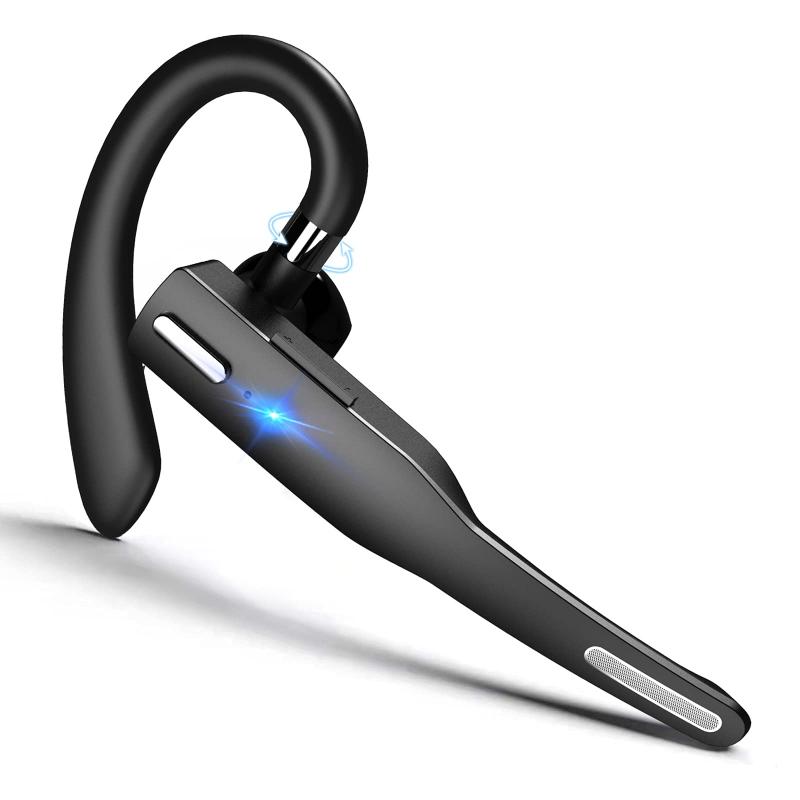
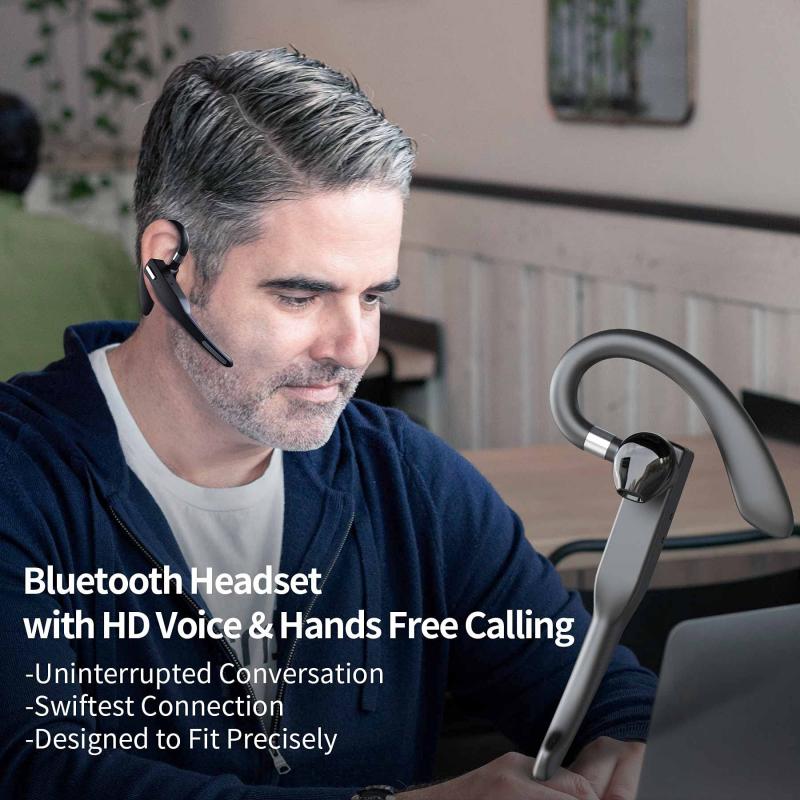
Bluetooth technology has become an essential part of modern connectivity. Whether you’re working from home, gaming, or tuning into your favorite playlist, Bluetooth headsets provide a wireless and convenient solution for your audio needs. However, if you’re new to wireless devices or encountering technical issues, connecting your Bluetooth headset to your PC can feel a bit intimidating. This guide will walk you through the process step-by-step, offering tips and troubleshooting advice to help you successfully pair your headset.
Step-by-Step Guide to Connecting Your Bluetooth Headset
1. Check If Your PC Supports Bluetooth
Before diving into the connection process, verify that your PC has Bluetooth functionality. Here’s how to check:
- On Windows:
- Click the Start menu and search for "Bluetooth."
- Select “Bluetooth and other devices settings.”
- If you see a toggle switch for Bluetooth, your PC supports the feature.
- If not, you may need to purchase a Bluetooth USB dongle.
- On macOS:
- Click the Apple menu and go to "System Preferences."
- Check for "Bluetooth" in the Preferences menu.
If your PC lacks Bluetooth, external Bluetooth adapters are widely available and easy to install.
2. Prepare Your Bluetooth Headset
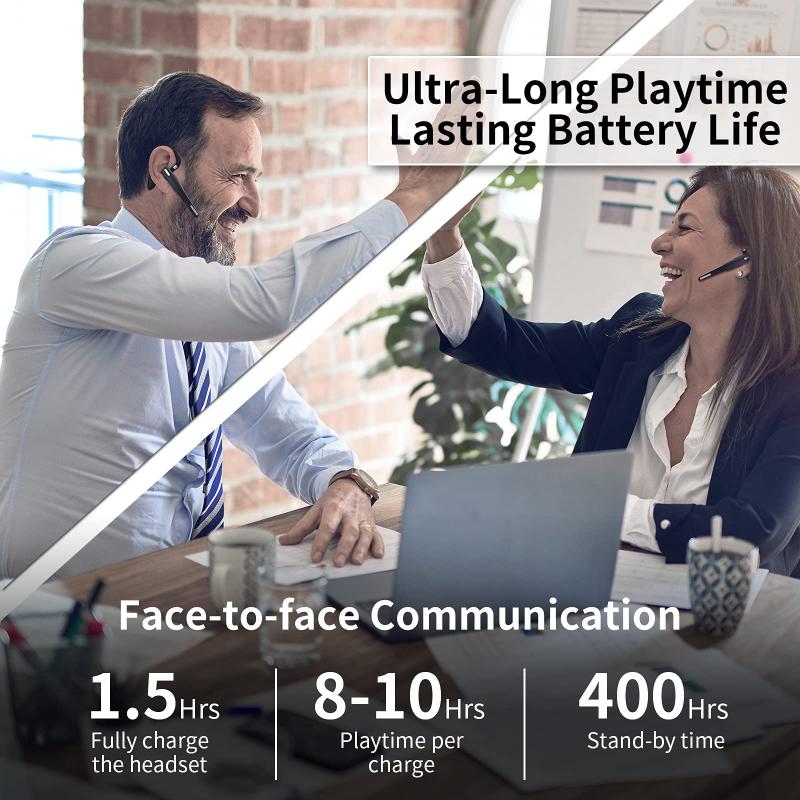
Ensure your Bluetooth headset is ready to pair:
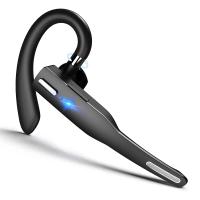
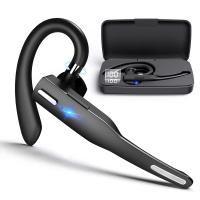
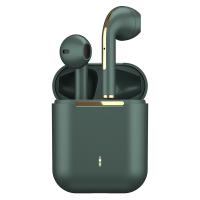
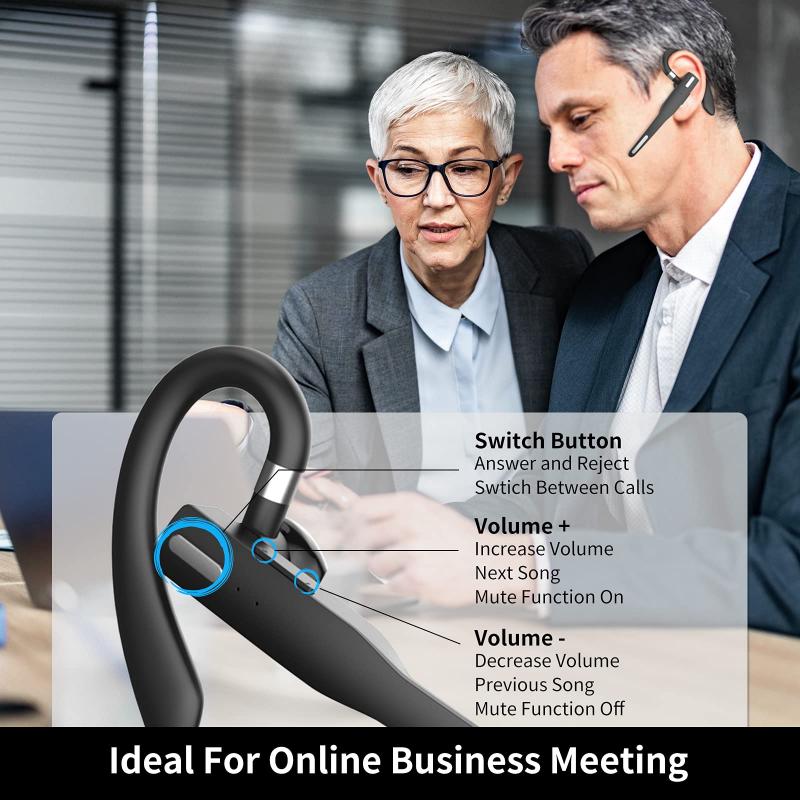
- Switch the headset into pairing mode. Typically, this involves holding down a dedicated Bluetooth button or the power button until an LED light flashes. The exact process can vary by brand and model.
- Consult the headset’s user manual if needed.
3. Enable Bluetooth on Your PC
- On Windows:
- Navigate to "Bluetooth and other devices settings" via the Start menu.
- Click the Bluetooth toggle to turn it on.
- Select “Add Bluetooth or other device,” then choose “Bluetooth.”
- On macOS:
- Open "System Preferences" and select "Bluetooth."
- Ensure Bluetooth is enabled.
4. Pair the Headset with Your PC
- Your PC will scan for nearby devices. Once your headset appears in the list, click on it to connect.
- After successful pairing, your headset should appear as "Connected" in the Bluetooth settings.
5. Verify Audio Output Settings
Even after pairing, audio can sometimes default to a different output device. To ensure your headset is set as the default:
- On Windows:
- Right-click the sound icon in the taskbar and select “Open Sound settings.”
- Under “Output,” select your Bluetooth headset.
- On macOS:
- Open "System Preferences" and navigate to “Sound.”
- Select your Bluetooth headset under the “Output” tab.
Troubleshooting Bluetooth Connection Issues
1. Headset Not Detected by PC
This is one of the most common issues users encounter. Try the following solutions:
- Ensure your headset is in pairing mode.
- Move closer to the PC to avoid interference.
- Restart Bluetooth on your PC and headset.
- Check that your PC’s Bluetooth drivers are updated (Windows-specific).
- For macOS users, restart the Bluetooth module by turning Bluetooth off and back on from the System Preferences menu.
2. Poor Audio Quality or Latency
- Audio issues may stem from signal interference, outdated Bluetooth drivers, or mismatched codecs. Resolve these issues by:
- Moving the headset closer to the PC.
- Updating your PC’s Bluetooth drivers and firmware.
- For advanced users, adjust the Bluetooth "Audio Codec" settings for higher-quality connections.
3. Headset Disconnects Randomly
- Battery: Ensure your headset is charged.
- Range: Stay within the headset’s effective range, typically 10 meters (33 feet).
- Interference: Avoid other wireless devices that may cause disruptions.
- Try re-pairing: Unpair and re-pair the headset through Bluetooth settings.
Advanced Features and Tips
1. Using Your Headset’s Microphone with PC
- While most Bluetooth headsets include a microphone, they may not always integrate seamlessly for PC use.
- If the microphone doesn’t work, check your audio input settings:
- On Windows: Navigate to "Sound settings" and ensure your headset is selected under “Input.”
- On macOS: Go to "Sound" in System Preferences, then select the headset under the “Input” tab.
2. Switching Between Multiple Paired Devices
- If you use your Bluetooth headset with multiple devices, ensure it disconnects from other devices before connecting to your PC.
- Some modern headsets allow simultaneous connections, but sometimes you may need to manually manage them.
3. Pairing via NFC
- If your headset and PC support NFC (Near-Field Communication), pairing can be even easier. Simply place the headset near the NFC-enabled PC to establish a connection almost instantly.
Tips for a Seamless Bluetooth Experience
1. Keep Drivers Updated
Bluetooth drivers play a critical role in maintaining stable connections. Regularly check for driver updates to ensure compatibility with your headset.
2. Optimize Placement
To avoid signal drops, keep your headset and PC free of physical barriers. Large metallic objects or walls can weaken communication.
3. Invest in Quality Hardware
If your Bluetooth setup frequently malfunctions, consider upgrading your hardware. Reliable headsets and high-quality Bluetooth dongles can drastically improve performance.
Connecting your Bluetooth headset to a PC doesn’t have to be a hassle. With this guide, you should feel confident in pairing your headset, resolving common issues, and optimizing its use. Whether troubleshooting connection problems, adjusting audio settings, or investing in the right hardware, these tips and insights provide the knowledge needed for seamless connectivity.
Bluetooth headsets offer the freedom of wireless audio, and with just a few steps, you can take advantage of this convenience for work, entertainment, or communication. If issues arise, don’t forget to consult the troubleshooting section or look up additional resources tailored to your headset model. Now, go ahead and enjoy the wireless sound experience you deserve!