How To Get Game Volume Through Headset Pc?
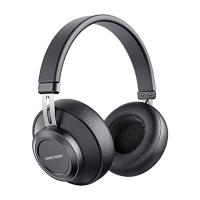
Managing audio output on your PC can sometimes become a bit of a hassle, especially when you want to direct game volume specifically through your headset. For gamers, high-quality sound can make all the difference in enhancing immersion and allowing gameplay elements—such as nuanced audio cues—to shine. If you're struggling to get your game volume through your headset or just want complete control over your audio settings, you've come to the right place. This guide will provide comprehensive instructions and solutions to answer practical questions about adjusting audio output for your gaming headset.
Understanding Audio Output on PC
Your PC's operating system (whether Windows, macOS, or Linux) and the headset hardware work together to determine where audio is sent. By default, if you're using a headset that's plugged into your PC, most operating systems will automatically route audio to it. However, certain configurations, games, or software settings may prevent the audio from working as intended.
Here are steps and solutions to ensure the game volume is directed through your headset.
Step 1: Set Your Headset as the Default Playback Device

Most operating systems allow you to designate a "default playback device." This means all audio, including game sounds, will automatically be directed to the selected device. To make sure your headset is used as the default device:
On Windows:

1. Plug in your headset: Connect it via either the USB port, 3.5mm audio jack, or Bluetooth, depending on your headset type.
2. Access Sound Settings: Right-click the sound icon in the bottom-right system tray and choose "Open Sound settings."
3. Choose your device: Under the "Output device" dropdown menu, select your headset. If you're using an older version of Windows, you can also access this option through "Control Panel > Hardware and Sound > Sound."
4. Default Device Settings: In the sound settings menu, click "Manage sound devices" and ensure your headset is set as the default device for playback.
On macOS:
1. Plug in your headset: Establish a connection via the USB port, Bluetooth, or audio jack.
2. System Preferences: Go to "System Preferences" and select "Sound."
3. Choose Output: Navigate to the "Output" tab and select your headset from the list of devices.
On Linux:
1. Connect your headset: Similar to Windows or macOS, use the appropriate connection method.
2. Manage Sound Settings: Open the sound settings through your distribution's control panel (e.g., PulseAudio Volume Control for Ubuntu).
3. Set Playback Device: Under "Output Devices," select your headset.
This step ensures that any application or game you open sends audio directly to your headset.
Step 2: Check In-Game Audio Options
Games often have their own audio settings that can override your system-wide settings. If your headset is properly connected and set as the default output device, but you're still unable to hear game sounds, it's time to verify game-specific audio options.
Typical in-Game Audio Settings
1. Access the game's settings menu: Look for an "Audio" or "Sound" section.
2. Output Device Selection: Many modern games let you specify which audio device they should use. Ensure your headset is selected here.
3. Volume Levels: Double-check that the master volume, in-game sound effects, and other audio-related options are turned up and functioning.
Always restart the game after changing audio device settings to ensure the new configuration applies.
Step 3: Verify Headset Drivers and Compatibility
Sometimes, audio-routing issues occur due to missing or outdated drivers. A driver is the software that lets your operating system communicate with your hardware, such as your headset.
Update or Install Drivers:
1. Automatic Updates:
- On Windows, connect your headset, and Windows may automatically search for compatible drivers.
- Check your headset manufacturer's website for the latest version of the driver software if available.
2. Manual Verification:
- Navigate to "Device Manager" (on Windows) and find your headset under "Audio inputs and outputs."
- Right-click your device, select "Update driver," then follow the on-screen instructions.
Updating drivers ensures your headset works efficiently, reducing audio routing issues.
Step 4: Use Advanced Audio Features (Optional)
If you’re looking for more control over your audio settings or if standard methods aren’t working, you can use advanced audio management tools and software. These tools allow you to redirect individual application sounds to specific devices.
Recommended Software:
1. Voicemeeter
- A powerful audio mixer tool for Windows that lets you manage audio routing.
- You can configure Voicemeeter to send specific audio sources—like your game—to your headset.
2. SoundSwitch
- This Windows application makes switching between audio output devices seamless. You can quickly toggle output to your headset or other devices using hotkeys.
3. Audio MIDI Setup on macOS
- Mac users can reconfigure their audio devices using the built-in Audio MIDI Setup tool. This allows fine-tuning of sound output across connected devices.
Step 5: Troubleshooting Common Issues
Even after configuring everything correctly, problems may persist. Here are common issues and solutions:
No Sound from Headset:
1. Check headset connection: Ensure the cable is properly plugged in or that Bluetooth is successfully paired.
2. Increase volume levels: Verify your PC’s system and game volume aren’t muted or set too low.
3. Test another audio source: Try playing different media (such as music) to confirm the headset is functional.
Audio is Too Quiet or Distorted:
1. Inspect settings: Verify your sound settings for equalizer presets, enhancements, or environmental effects that may impact performance.
2. Replace worn components: For wired headsets, worn-out cables or loose plugs can cause distortion.
Sudden Sound Disconnection:
1. Check power/battery levels: Wireless headsets can disconnect due to low battery.
2. Close conflicting programs: Ensure no other open application is interfering with audio output.
Step 6: Optimize for Gaming
Lastly, to enhance your gaming experience, ensure that your audio settings are optimized to exploit the full potential of your headset:
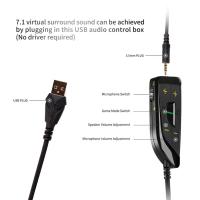
1. Use surround sound features: Many gaming headsets offer virtual or true surround sound, which can improve immersion.
2. Enable enhancements: Look for advanced features like noise suppression, bass boost, or voice clarity provided by your headset's companion software.
For competitive gamers, finetuning audio can help pinpoint gunfire, footsteps, or other game-related cues critical to success.
Directing game volume through your headset on a PC requires proper configuration of system-wide audio output settings, game-specific audio sources, and hardware troubleshooting. By following the steps listed above, you’ll be able to enjoy an optimized audio experience tailored to your gaming needs.
Whether you’re immersed in open-world adventures or engaged in fierce competitive battles, remembering to check audio settings first can save you time and frustration. Additionally, keep your headset updated and powered for consistent, high-quality performance. Now, adjust your settings and dive into your favorite games with clarity and precision—your headset will take care of the rest.